In a previous walk through post we set up Revenue Cloud and demonstrated creating a quote for our Digital Frame product. We then showed in a further post how to define a product attribute which represents the Frame Colour characteristics of the Digital Frame product and this can then be configured during the quoting process. In this post we will extend the Digital Frame product further by configuring an additional product attributes of Frame Size and then use the Frame Size value to adjust the product pricing on the quote.
The figure below shows the data model we worked with as we setup our attributes.
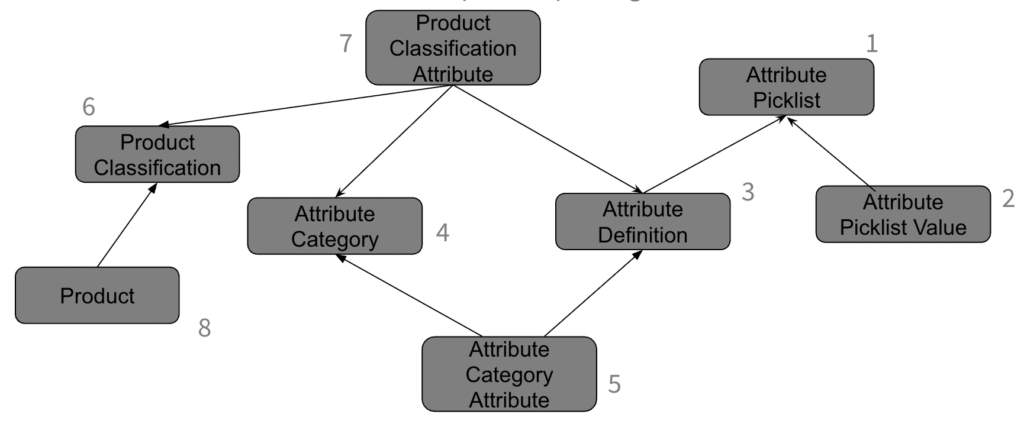
As we configure our Frame Size attribute we need to mark the attribute as ‘Price Impacting’ within Step 7, Product Classification Attribute.
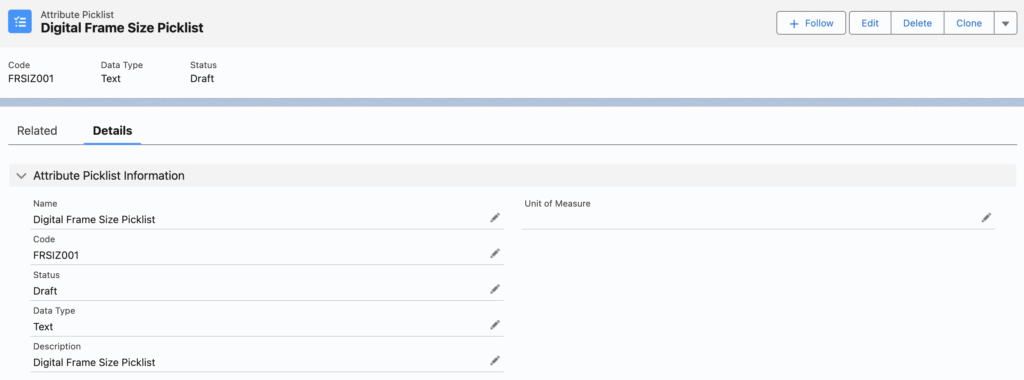
First we will start with our Attribute Picklist definition
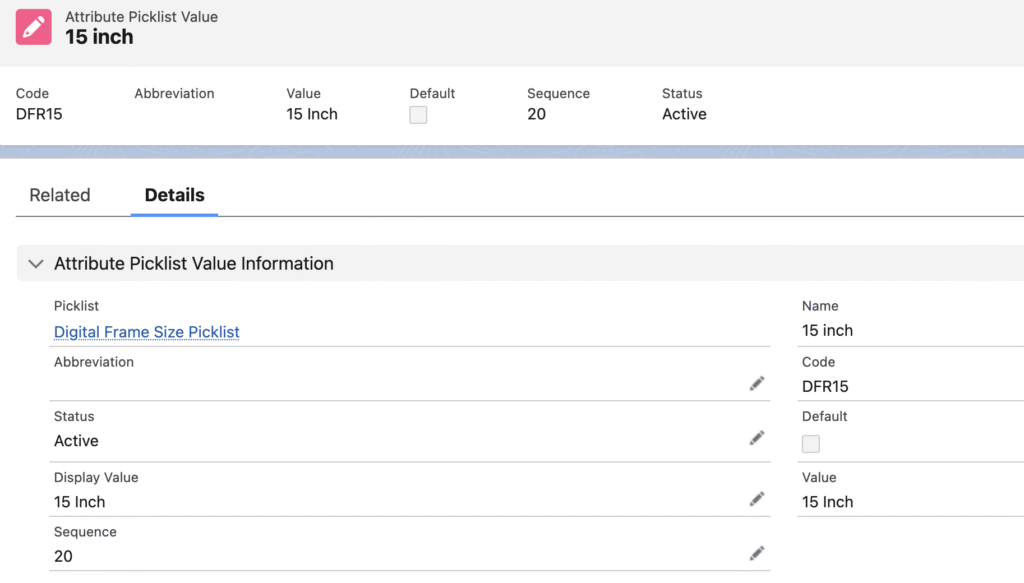
Then we will create our Attribute Picklist Values of 12, 15, 18 and 24 Inch
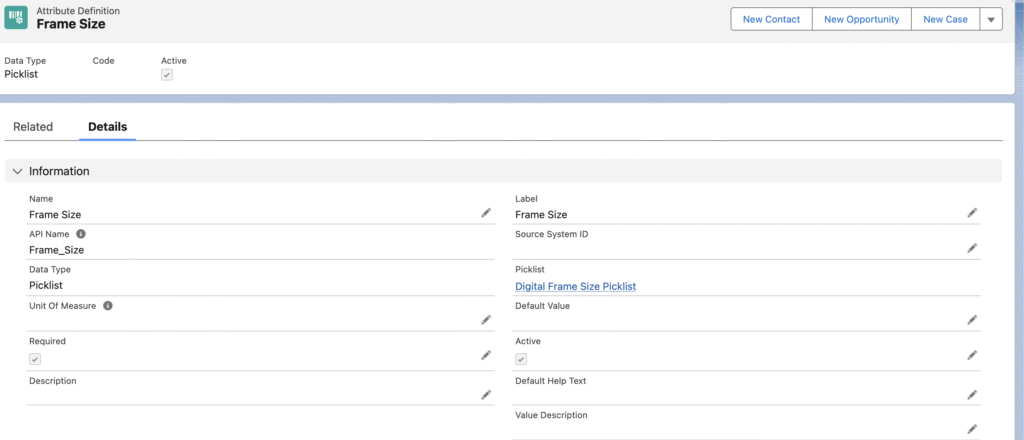
We then define our Attribute Definition, Frame Size, which will reference the above Picklist.
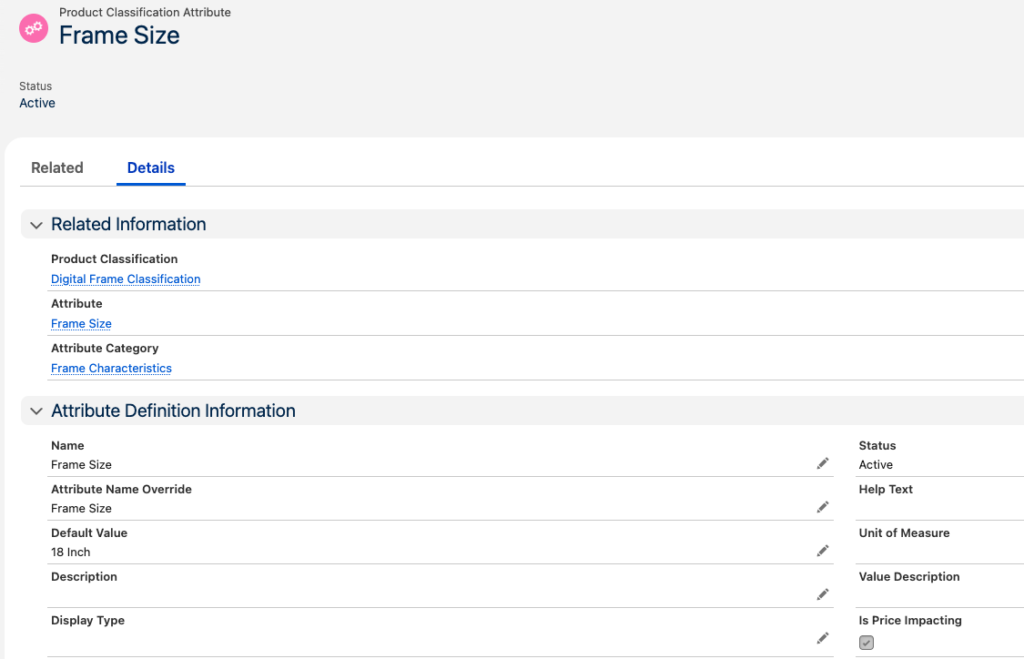
We can then add our Frame Size attribute to our Attribute Category, Frame Characteristics which is referenced to our Product Classification Attribute, Frame Size.
We then mark ‘Is Price Impacting’ as True within the Frame Size Product Classification Attribute.
Frame Size Product Classification Attribute is also referenced to the Product Classification, Digital Frame Classification
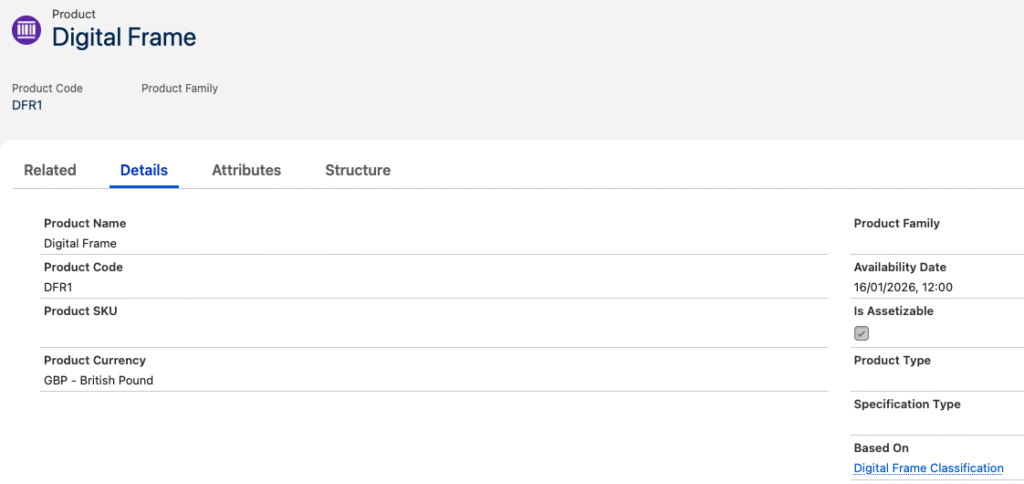
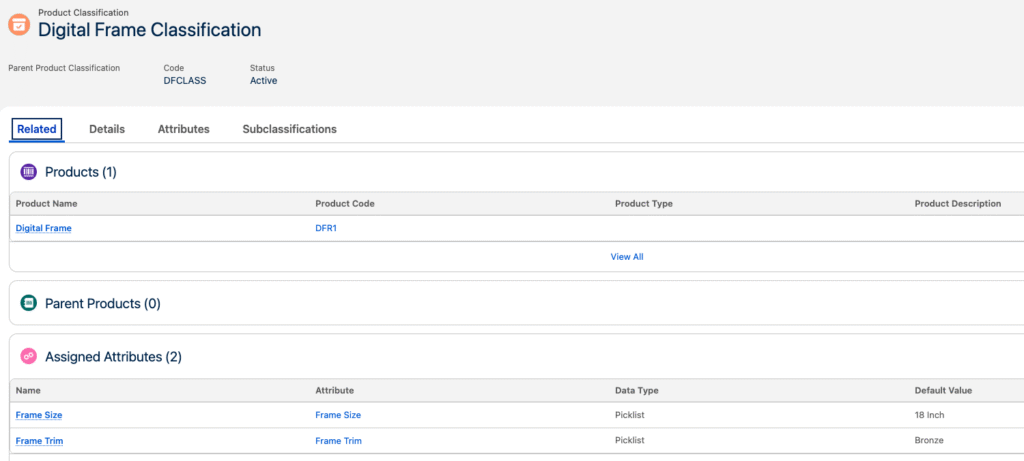
Digital Frame Classification is then referenced by our Digital Frame product which will assign our attributes to the product – Frames Size and Frame Trim
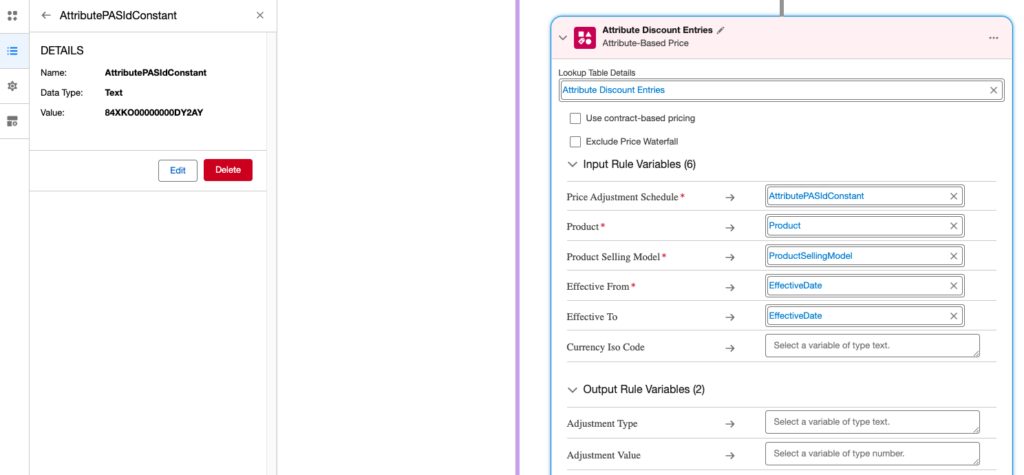
In order to enable pricing based on attribute values we have to update our pricing procedure to reference a Price Adjustment Schedule record which is then referenced within the Attribute Discount Entries element in our Pricing Procedure. The record we want is the Price Adjustment Schedule labelled Standard Attribute Based Adjustment and we take the Salesforce ID of that record and enter it as the value for our Pricing Procedure constant value, AttributePASIdConstant.
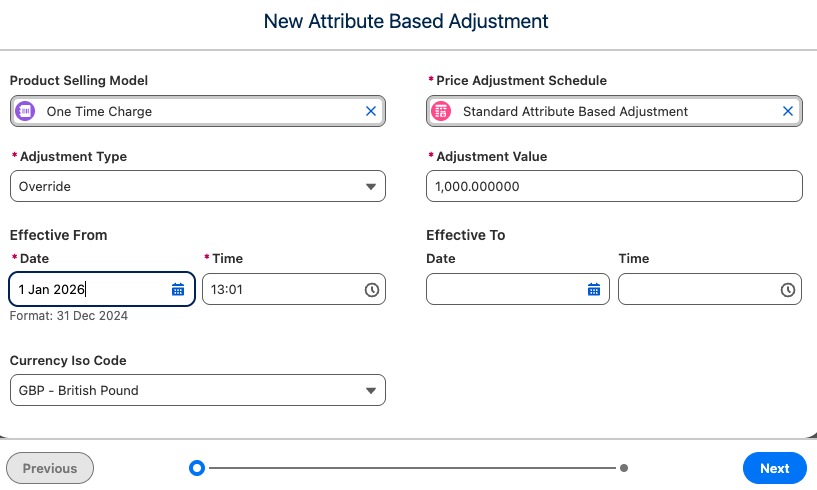
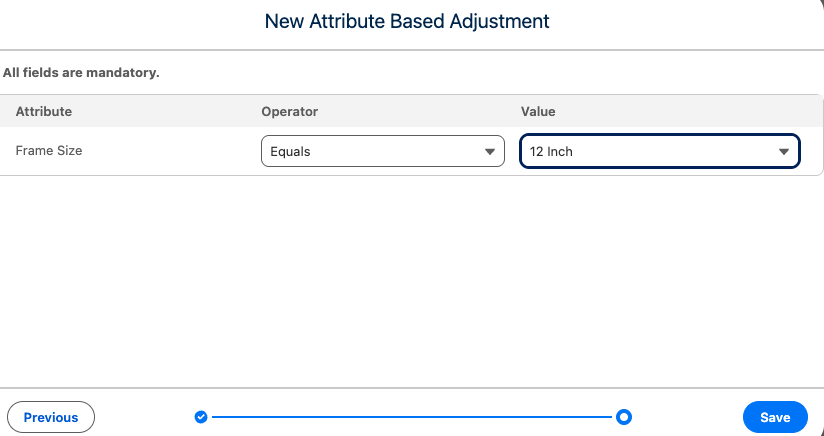
From our Product record for Digital Frame we now want to add a related Attribute Based Adjustment record with a Adjustment type of Override and Adjustment Value of 1000, with Frame Size equals 12 inch. This will change the price ie Override, our product quote line to £1,000 where we select a Frame Size of 12 inches when we configure our product attribute.
Other Adjustment types are percentage changes to the product price or specific amount price adjustments to the product price.
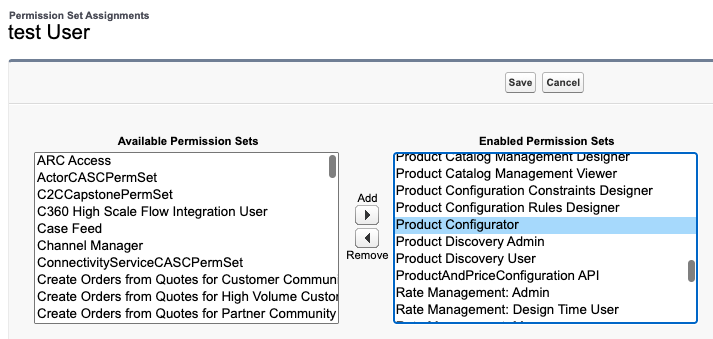
Before attempting to create a quote with the new attribute price adjustment we need to ensure our user who is building the quote has the Product Configurator permission set assigned.
We can then create a quote and add our Digital Frame. Within the Browse Catalogs function we can find our Digital Frame product and configure using the Configure wheel icon on our product line display.

Within the Configure screen we can select our Frame Size attribute. When we select 12 inch if we then click Update Prices the price changes to £1000 as required when we configured our Attribute Price Adjustment Schedule.
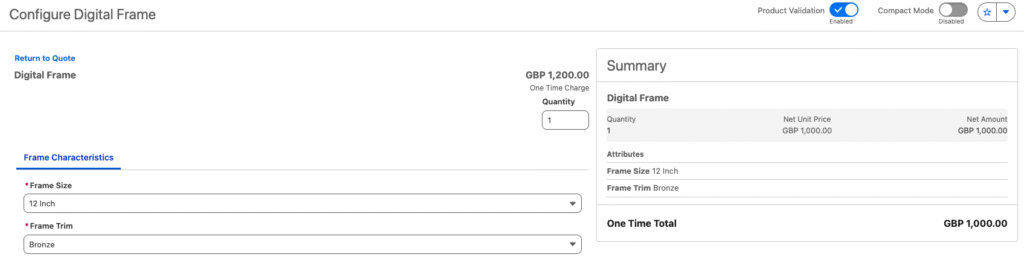
Continuing to add the product to the quote we can see on our quote line the adjusted price of £1,000 and the calculation details highlight panel gives the price waterfall details of the Attribute Discount applied.
