This post is the second of a series of posts which takes a detailed look at the Revenue Cloud Pricing Procedure and attempts to explain how the pricing elements are used with the Pricing Procedure, the data points which are referenced, and the outputs which are produced. In this post we’ll take a look at how we can introduce volume discount pricing to a quote line product.
In our previous post, Unpacking the Revenue Cloud Pricing Procedure – Part 1 – List Price and Sales Price, we created our Pricing Procedure – Pricing Procedure Unpacked, and added the elements required to manage List Price and Sales Price in our Quote Line.
We now want to add the Volume Discount element to our price Procedure. As described in Salesforce Revenue Cloud Pricing Architecture , this provides a price based on quantity discounting through referencing lower and upper bound quantity bands and associated discount values to adjust or over-ride the current product price. Its important to note with this element a single discount value is applied to the quote line based on the discount band obtained from the quote line quantity. How to apply separate discounts across separate discounts band will be covered in a later post which will review the Tier Discount element.
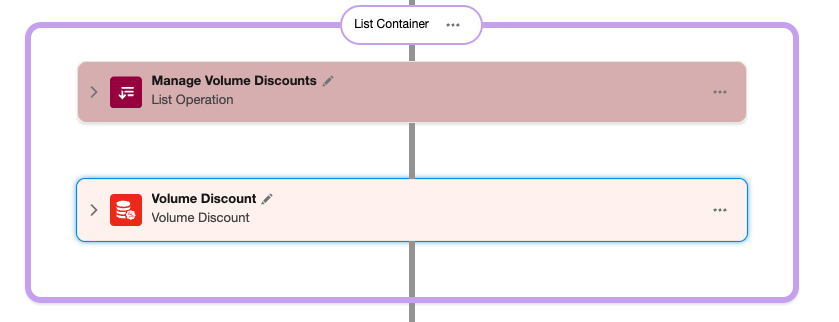
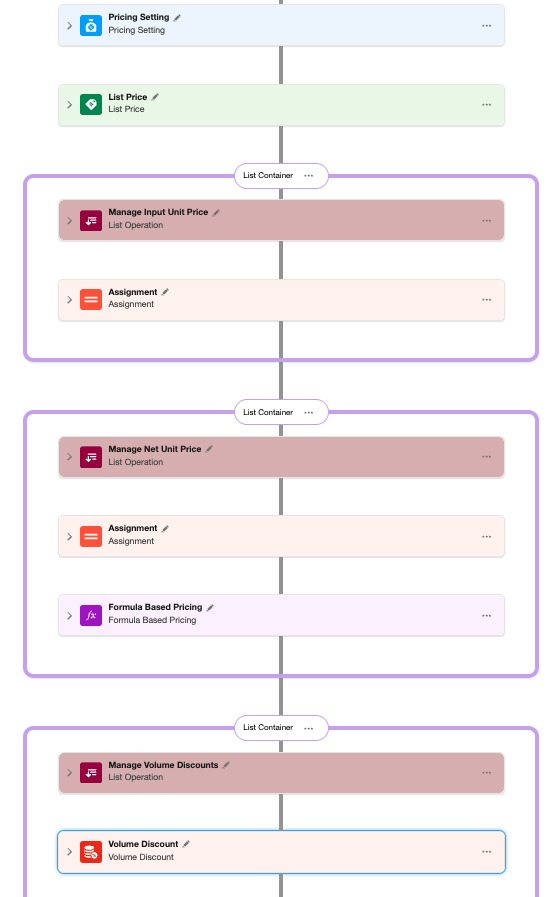
So if we open our earlier Pricing Procedure, Pricing Procedure Unpacked, we can add beyond the current elements the pricing elements shown below, List Group containing a List Operation, followed by the Volume Discount element,
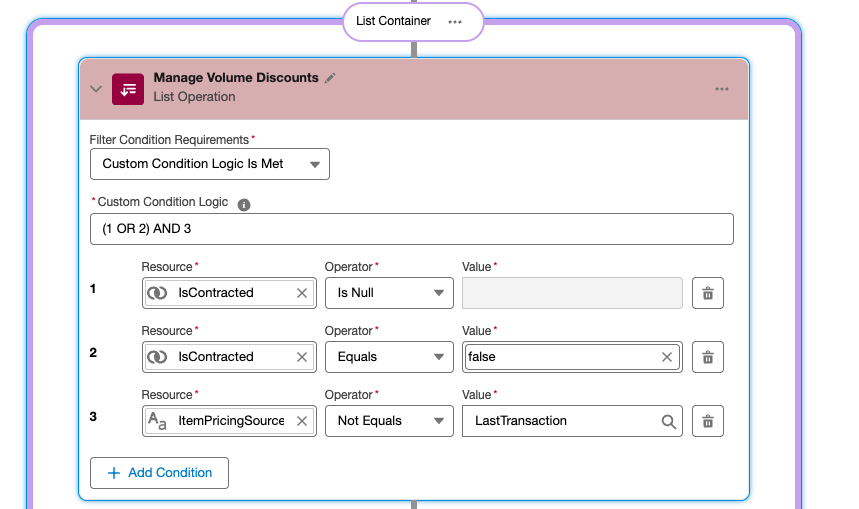
Configure the List Operation as shown below. The Context tags referenced as resources are standard tags which filter quote line pricing not based on contract pricing or previous transactions. We’ll look in more detail at this in a later post.
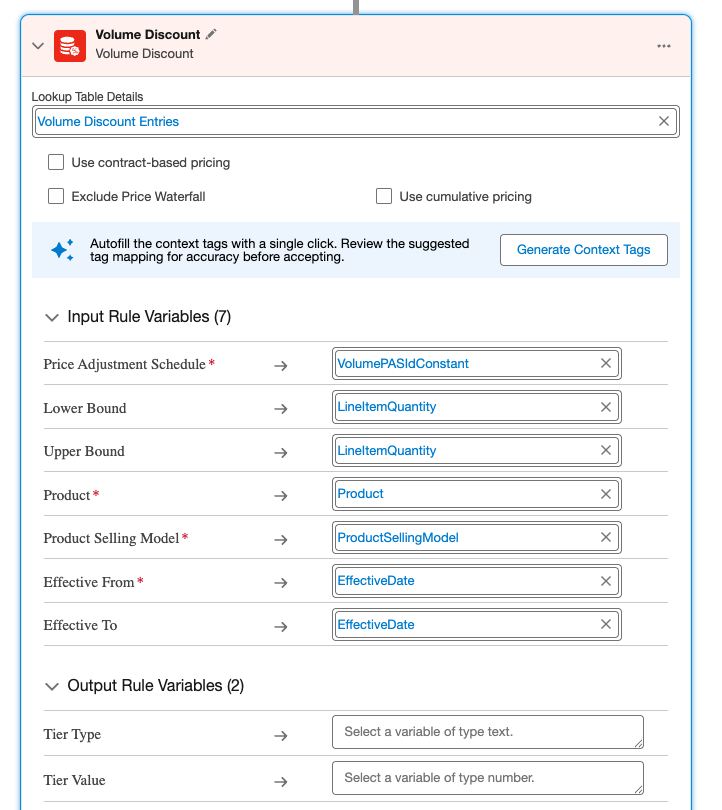
We now add the Volume Discount element below.
This references a standard Lookup Table, Volume Discount Entries which we will use to populate our volume discount bands and discount pricing on a product by product basis.
The Lookup Table references Input rule variables which use standard Context tags as shown. Based on the inputs and the Lookup Table values a Tier Type and Tier Value is returned.
Tier Type is one of the following
- AdjustmentPercentage
- AdjustmentAmount
- OverrideAmount
Tier Value is a number representing the above Type.
The element then uses a further set of inputs with these values and other standard Context tags to calculate adjusted NetUnitPrice and Subtotal.
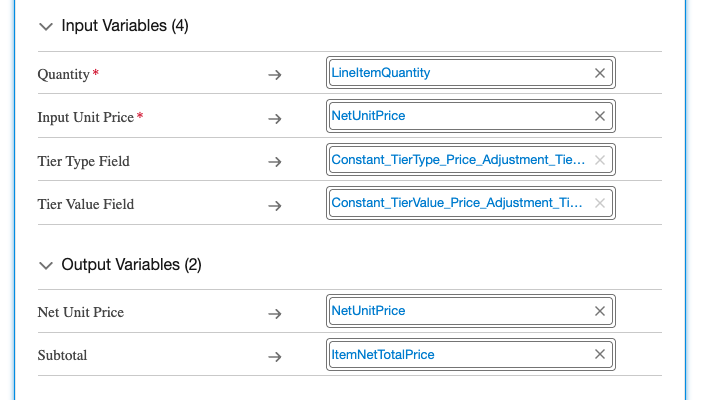
Note the reference to two constant values. These are local Constant resources within the pricing procedure which reference specific fields in the lookup table which have to referenced. They need to be defined as follows.
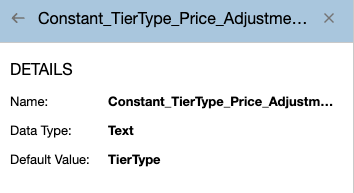
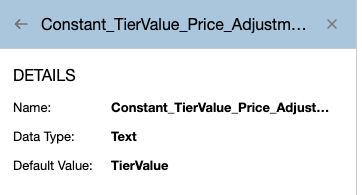
Once the above elements have been added to Pricing Procedure Unpacked, save and activate.
We then need to add our product specific volume discount bands and discount details.
If we go to the related list for the Digital Frame product we created in our earlier post, Setting up Revenue Cloud – a walk through to the Quote, and view the related list we see Price Adjustment Tier [this may need to be added to the related list page layout of Product object].

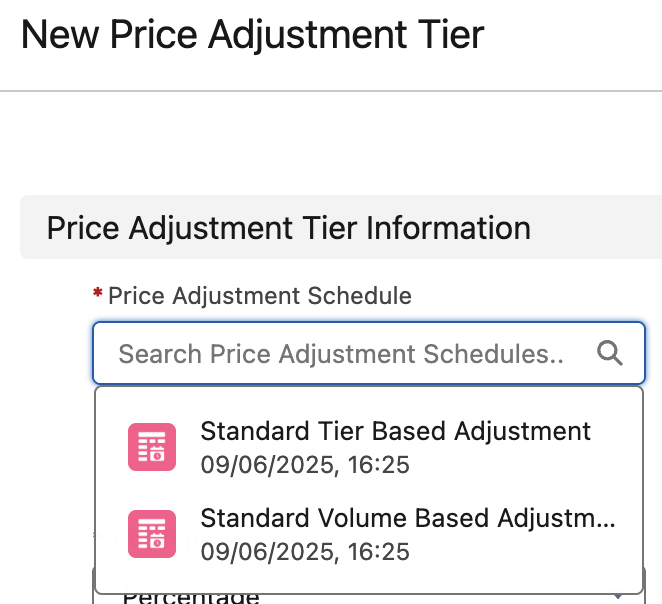
If select New from this we can create our Price Adjustment Tier Record.
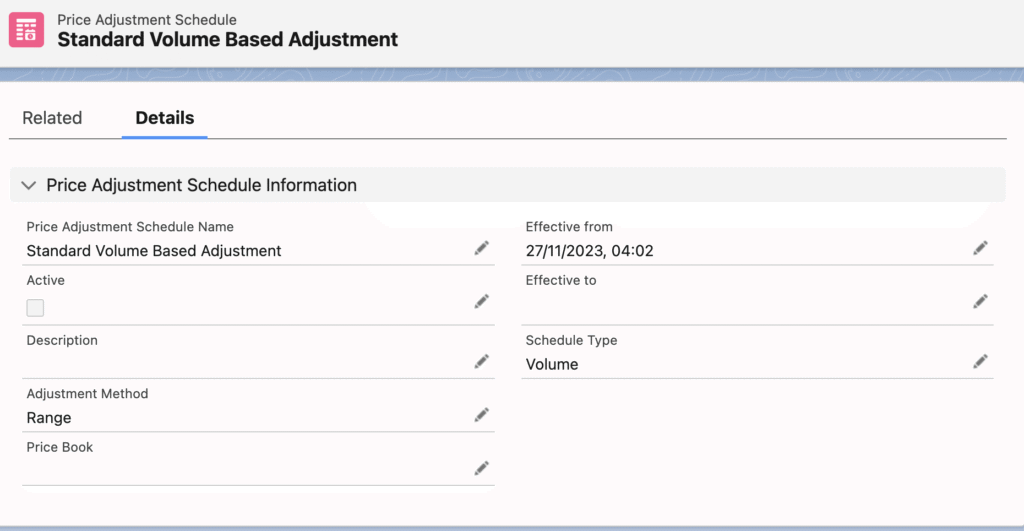
We first select a Price Adjustment Schedule Record. The supplied standard record is Standard Volume Based Adjustment which is configured with an adjustment method of range ie the price adjustment has to apply across the range of quantity values instead of separate adjustments for each tier of quantity value.
We then choose our discount Tier Type
- Percentage
- Amount
- Override
the Tier Value representing the above type, the lower bound of the tier quantity, the upper bound of the tier quantity, and the Product Selling Model.
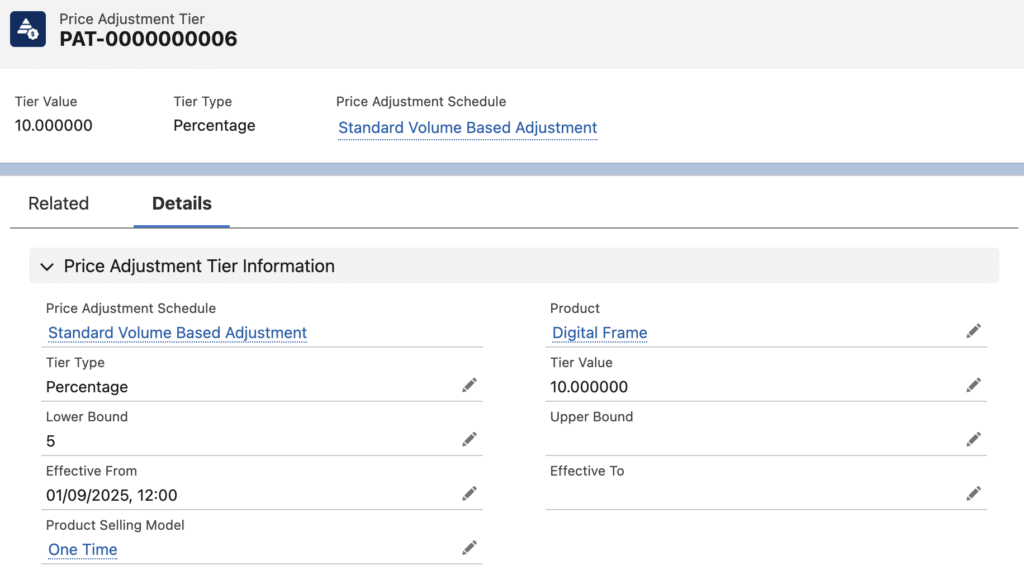
We now have a Price Adjustment Tier record on our Digital Frame product which will apply a 10% discount on the product quote line where quantity is 5 or more.

If we now examine the Volume Discount Entries lookup table referenced in the pricing procedure Volume Discount element we can see that it references the Price Adjustment Tier object.
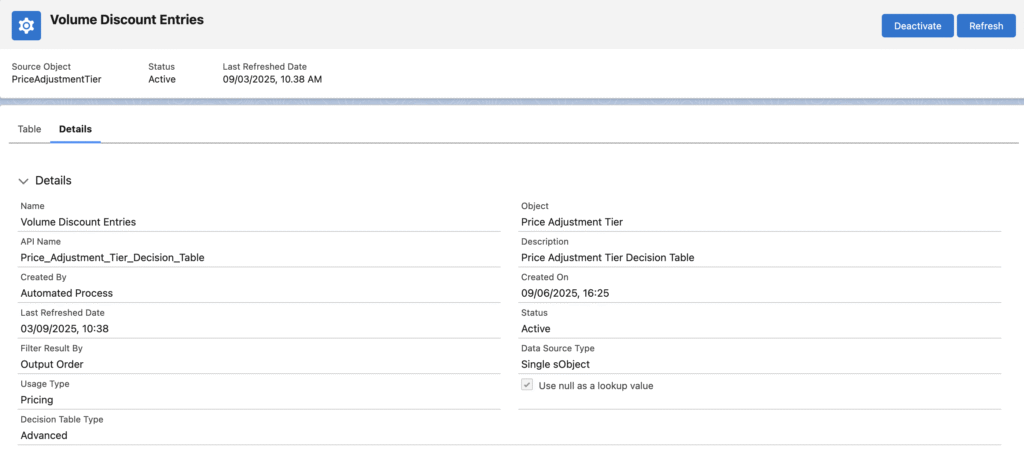
We now need to refresh the Lookup Table – using Refresh on the above page, or Sync Pricing Data within the Salesforce Pricing Setup.
After refresh has been completed we can see the entry from Price Adjustment Tier is now available in the Volume Discount Entries Table.
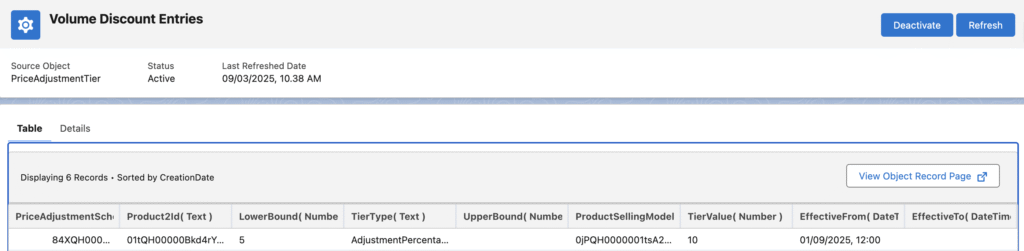
If we now go back to the quote line for our Digital Frame product as shown in our previous post, we can adjust the quantity value to five or more and we will see the Net Unit Price and Total Price adjust accordingly based on the discount we 10% discount we defined.

From the quote line if we hover over the Net Unit Price we see a pop describing the price waterfall details used to arrive at our price.
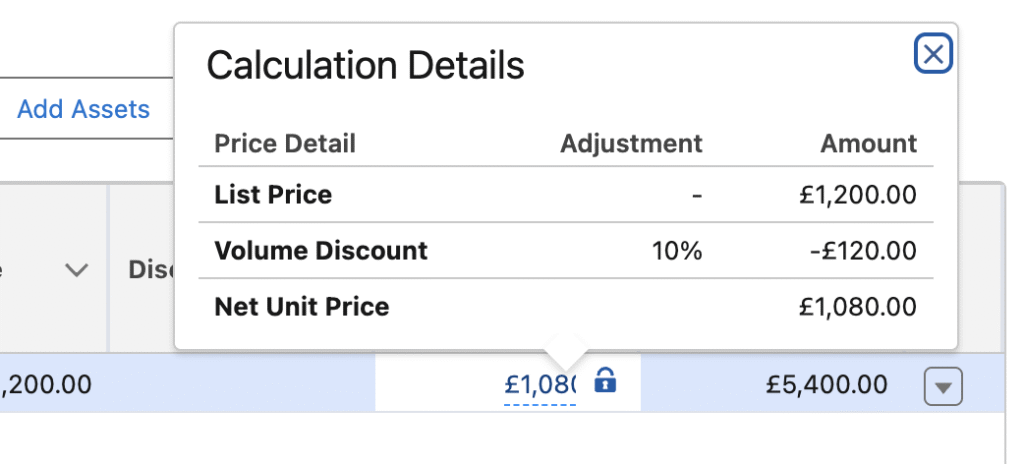
We have now extended our pricing procedure, Pricing Procedure Unpacked, to allow for discounts by introducing the Volume Discount element and creating our Pricing Adjustment Tier record against our product.
Future posts will examine other discount types such as product bundle and product attribute based discounts by further extending the Pricing Procedure.