In previous walk through posts we set up Revenue Cloud and demonstrated creating a quote. We then showed how the quote can be progressed to an Order and Asset records from which the lifecycle of product subscriptions can be managed. In this post we will build on these earlier posts by demonstrating how we can create billing instructions involving financial invoices from our Order which enables the following business functions and which take us close to fulfilling our quote to cash journey:
- creating a sales ledger entry recording the financial transaction.
- communicating a request for payment to the customer.
- producing the necessary accounting entries for business accounts.
Areas we will cover in the production of our invoice include:
- Billing Policies
- Billing Treatments
- Billing Treatment Items
- Invoice Documents
- Legal Entities
- Billing Schedules
- Accounting Periods
- Accounting Ledger entries
To demonstrate the production of our invoice we will quote for the following products:
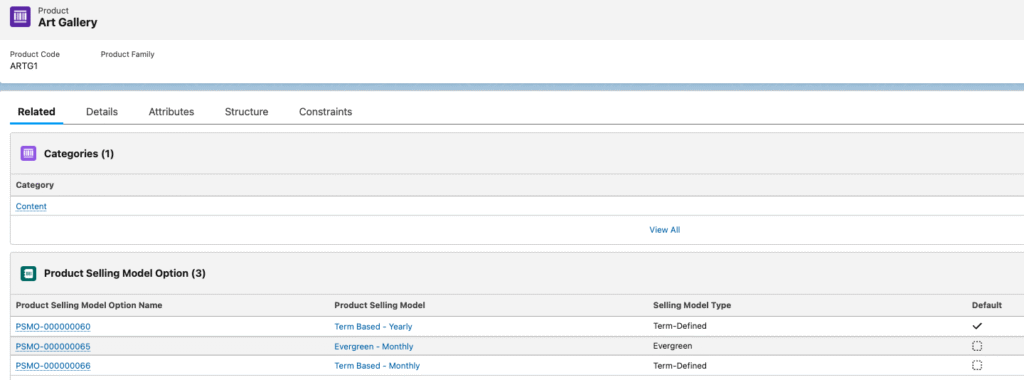
- Art Gallery – requiring a monthly subscription payment over a period of 12 months.
- Digital Frame – a one time charge product with a single payment.
Each of the above payment types is represented as we saw in our earlier post by a related Product Selling Model Option to the product record.
In producing our invoice we have to introduce the concept of a Legal Entity record. This represents the business entity we want to track our financial transaction against. In our case we have one legal entity defined.
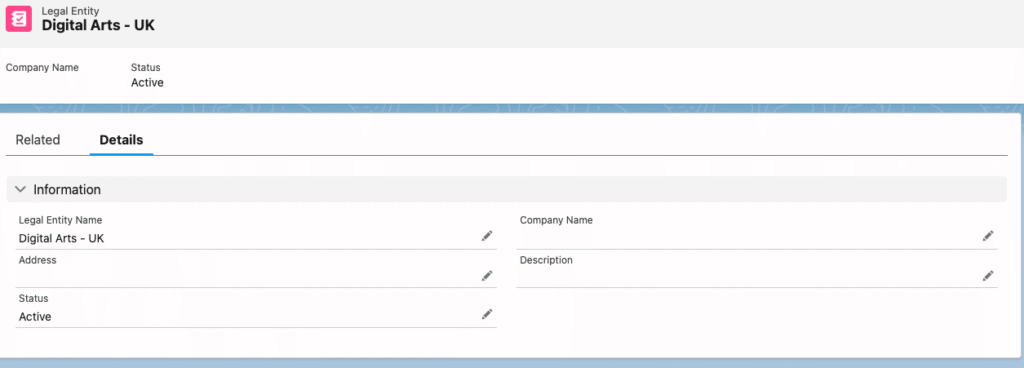
If we go to Setup – Billing Settings, we can define this as a default Legal Entity which is applied to all of our billing instructions.
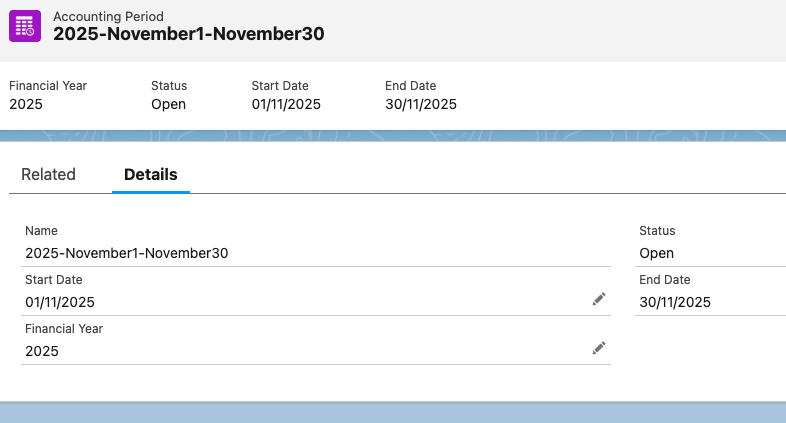
We then require Accounting Periods to be defined which provide a series of time windows for recording our financial transactions against. In our case we will create a series of monthly periods as shown below.
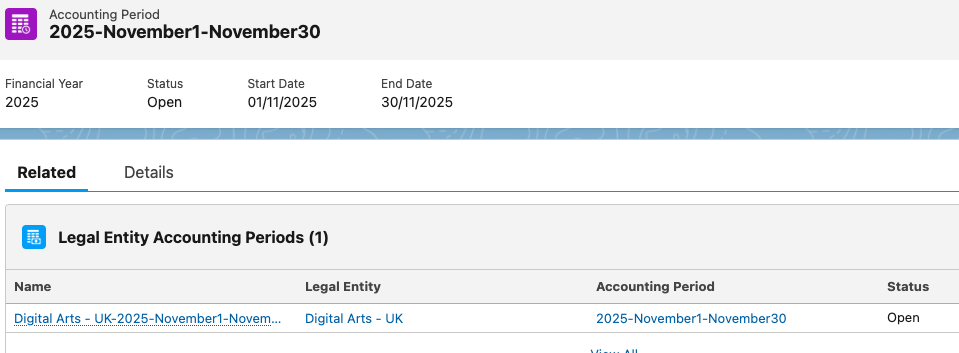
Against the Accounting Period we then further reference the Legal Entity we created in order to create separate Legal Entity Accounting Periods
For us to now define how our products will be billed to the customer in the context of these legal entities and timescales we start by defining a Billing Policy Record as shown below
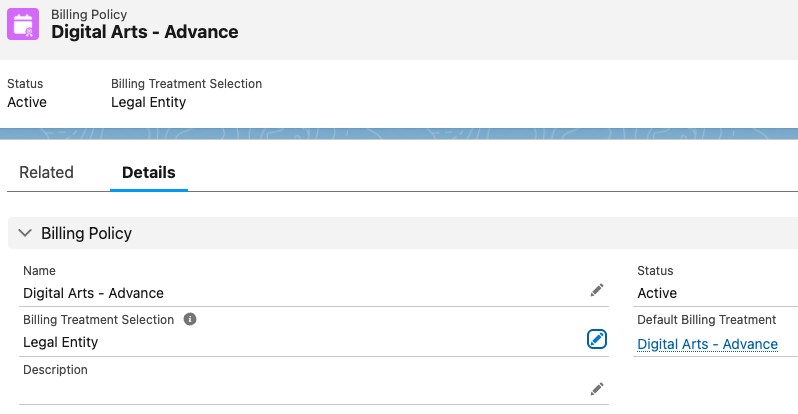
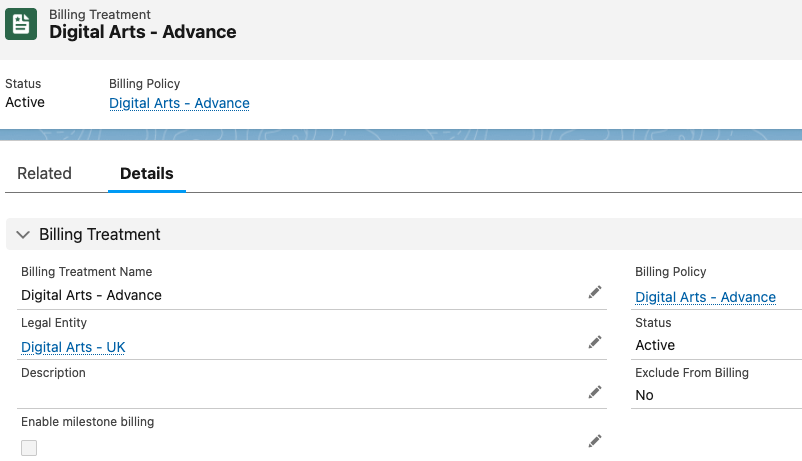
This Billing Policy record references one or more Billing Treatment records, including a default treatment, and these treatment records reference the Billing Treatment Item records which determine the rules by which billing our product sales are established.
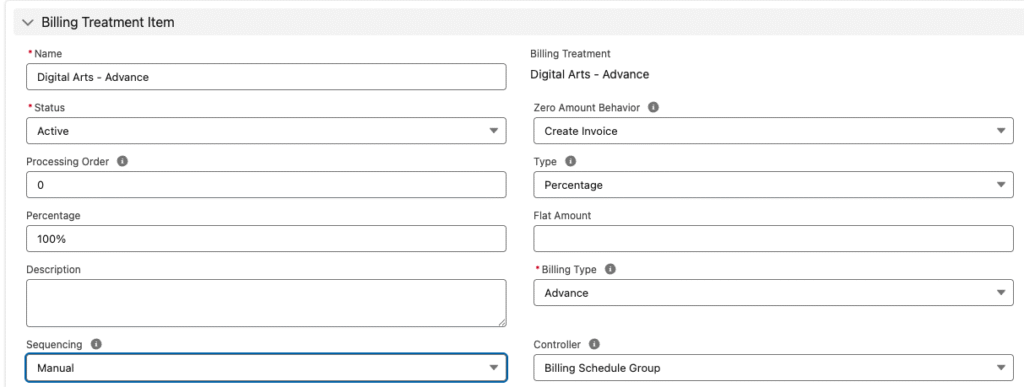
From each Billing Treatment Item we can specify
- Billing in advance or in arrears – ie at start of billing period or at end.
- Percentages of the total amount to be billed within each Treatment Item.
Once we have our Billing Policies with associated Billing Treatments and Billing Treatment Items we reference a Billing Policy from our Product records to associate the required billing rules with each product [This can also be defaulted fro products using Billing Setting defaults].
For us to record our financial transaction in Accounting terms we now create General Ledger Account records. These records represent our accounting codes that we will log each financial transaction from a credit and debit perspective.

For our product sale we want to record the transaction in Accounts Receivable and Deferred Revenue ledgers. To do this we create a General Ledger Account Assignment rule which references these General Ledger Accounts and associated debit and credit. The example below show this in place for posted Invoice Lines for our Art Gallery subscription product:
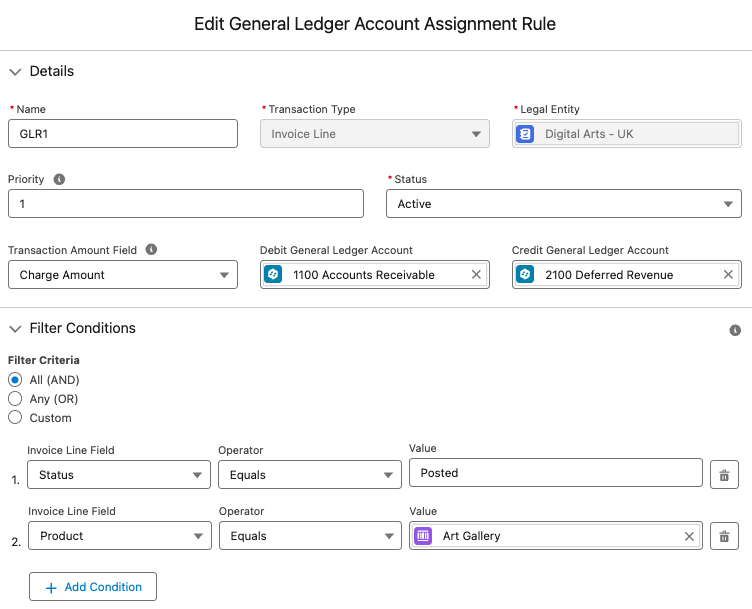
In Accounting terms the Accounts Receivables represents Assets and a debit increases an Asset Account which is what we want with our sales transaction. Deferred Revenue represents Liability and a credit increases a Liability Account. Its in this area where an organisation’s finance team will get involved to define the necessary Ledger Accounts, and the rules to be followed in defining debit and credits associated with a financial transaction. These Ledger Account entries from the product sales can then be integrated with the general business Financial System.
Finally we need to configure a Flow which will create Billing Schedule records when an Order record is activated. We start with the system supplied template -Order to Billing Schedule Flow. Open this and Save as ‘Order to Billing Schedule’ and activate this new flow.
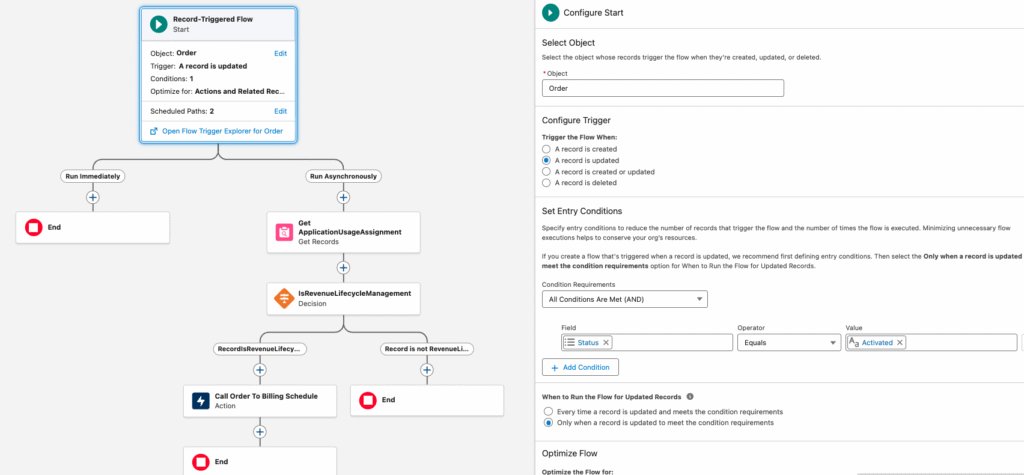
By following the path through this Flow we see that it calls the Invocable Action – Call Order to Billing Schedule. This Action will then call the Revenue Cloud Billing API – Create Billing Schedules for Orders
We can now proceed to setup our quote. We want the quote to reflect a 12 month subscription period during which we will invoice and bill the customer on a monthly basis for our subscription service, Art Gallery, along with the single one time charge product, Digital Frame. So we will setup our quote lines as shown below with Start Date and End Date defined.

From the quote we can see a single charge of £1000 for the Digital Frame product and a charge of £300 for the Art Gallery product to be billed monthly over the course of the 12 months.
We now create an Order from the quote which generates our Order Products representing our Quote Line Items. Note the billing frequency represented on the Order Products

We now activate our Order which will create Billing Schedules for each of our Order Products using the above Flow.
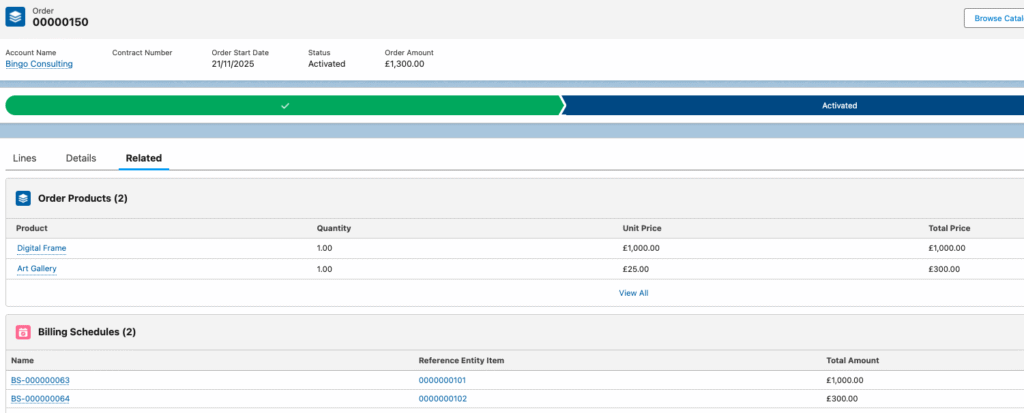
If we take a look at the Billing Schedule for the Art Gallery subscription product we see the following.
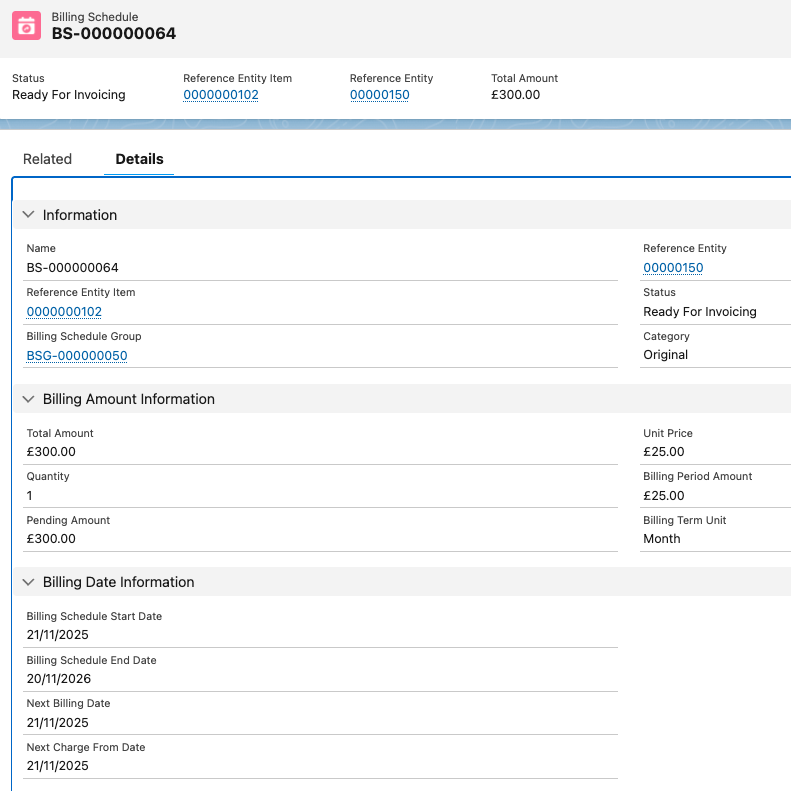
Key dates which are established on the Billing Schedule are
- Billing Schedule Start Date
- Billing Schedule End Date – 12 months from start date
- Next Billing Date – currently showing the start date
We can also see
- Billing Period amount – £25 which is the monthly subscription fee for the Art Gallery product [£300 for the 12 month subscription]
- Billing Term Unit – Month
We can now generate our first invoice using the Generate Invoices Action on the Order. From this Action the system will invoke an internal function – BillNow, which will present the following screen for manually creating an invoice. Typically Invoices will be generated using a Billing Batch Scheduler which will be covered in a future post. For the purpose of this post we will manually generate the invoice.
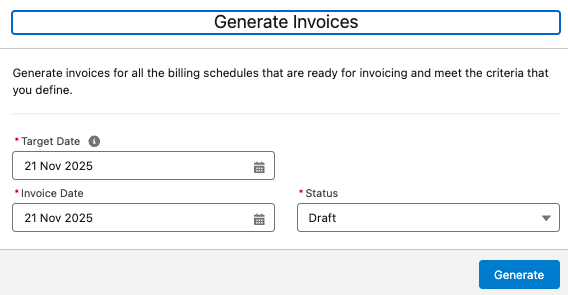
From the above screen we see
- Target Date – which will bill all billing schedule records with a next billing date of on or before this date for invoicing.
- Invoice Date – the date stamped on our resulting invoice.
- Status – do we create our invoice in Draft or Post status. Draft allows us to inspect the invoice before posting.
Our Invoice record is now generated.
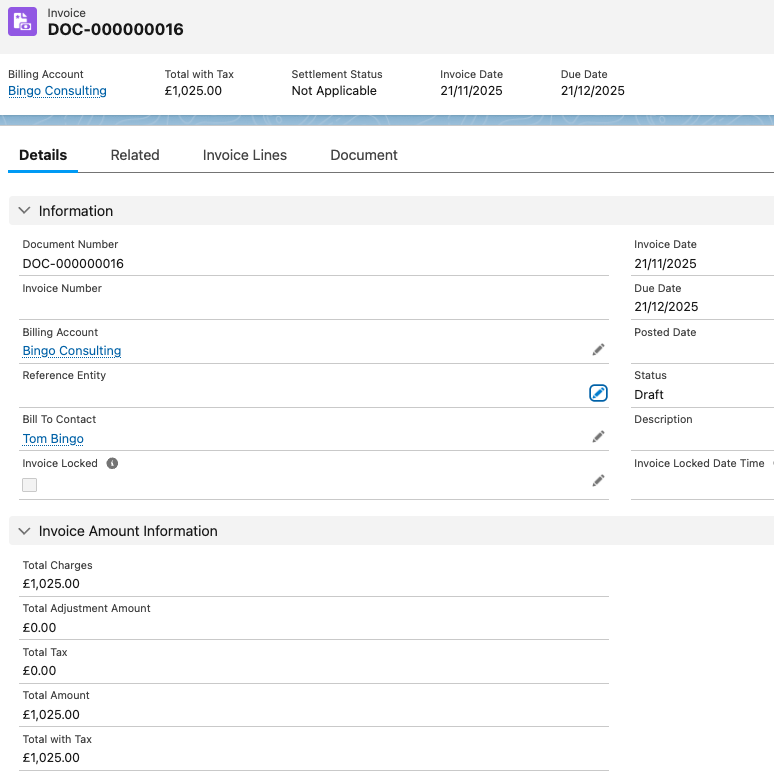
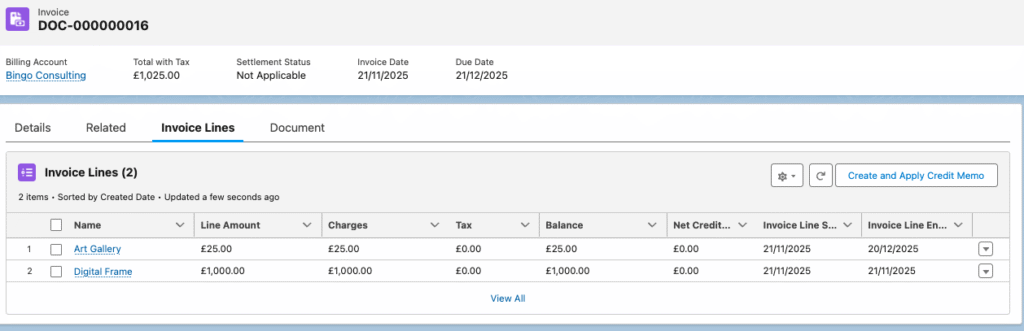
The total charge is showing as £1025 – £1000 for the Digital Frame product plus £25 for the first monthly subscription charge for the Art Gallery product and referenced on the Invoice Lines for our Order Products
A simple invoice document can also be generated using an Omniscript Lightning Page component. From our Invoice record select Setup, Edit Page and create a Document tab and add the Omniscript component.
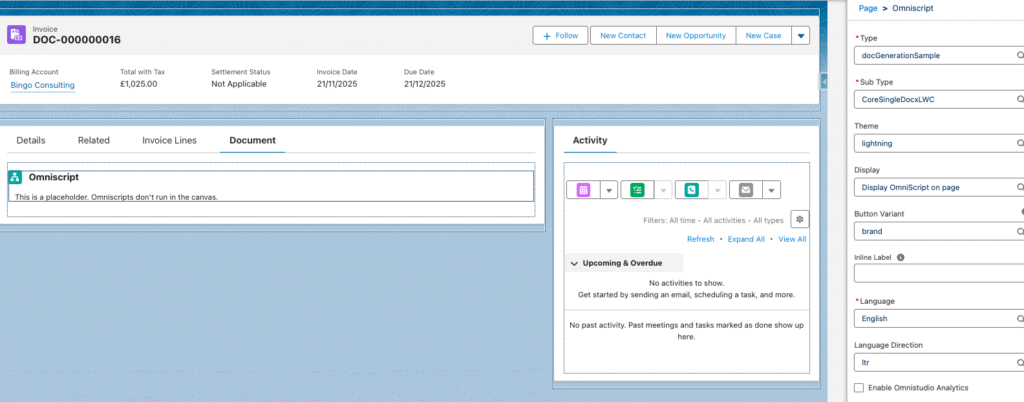
Save the page and from this tab on the Invoice record you will be prompted to enter the record ID of this invoice which generates the default template Invoice document:
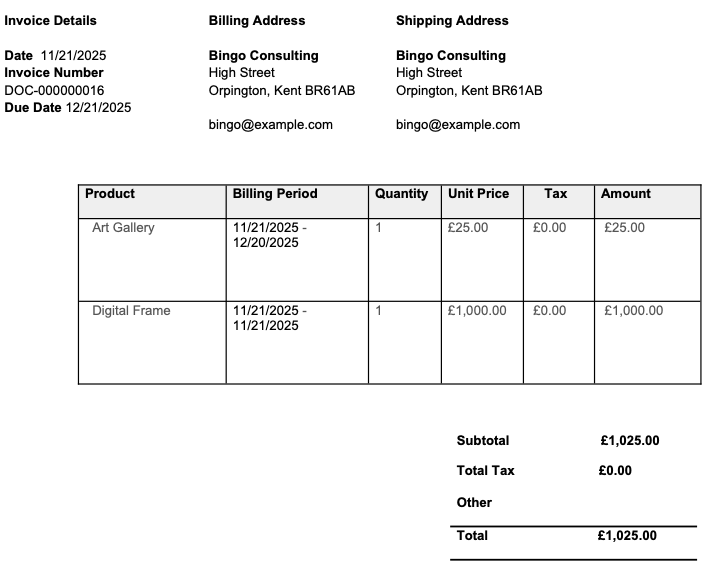
Invoice documents will typically be generated in conjunction with the Billing Batch Scheduler which will be covered in a later post along with how to create your own custom invoice document.
If we now move our invoice from status of Draft to Posted we will see a number of things happen in the system.
Firstly if we examine the Billing Schedule record for our Art Gallery Order Product we can see the following:
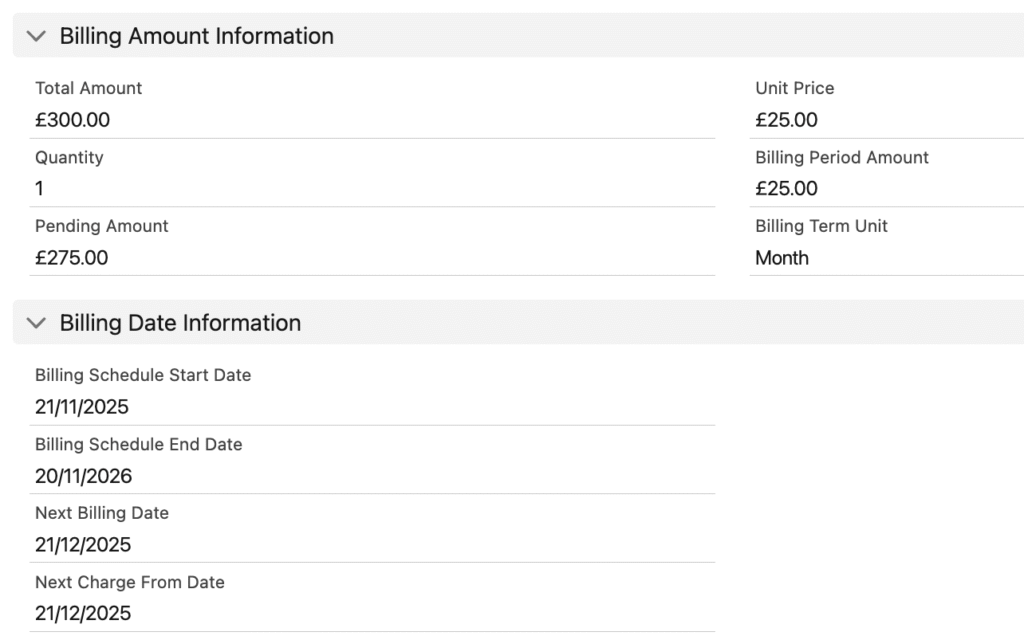
This shows a change in the Pending Amount from previously £300 to now showing £275 – £25 has been billed from our first invoice and £275 remains to be billed. Also we can see the next billing date has changed from the November date to December when the next billing event is due.
This demonstrates how the Billing Schedule record will track these key data points during the lifetime of the subscription.
Secondly, if we reference the General Ledger Account Assignment rule we created above, we can now see Transaction Journal entries created for our Art Gallery subscription product – One for a debit entry to the Accounts Receivable ledger, and another as a credit entry for our Deferred Revenue ledger.
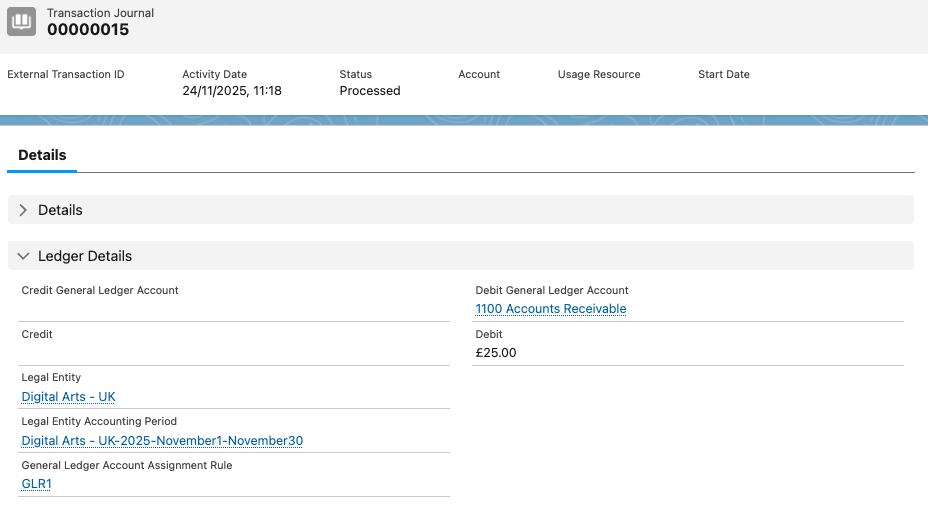
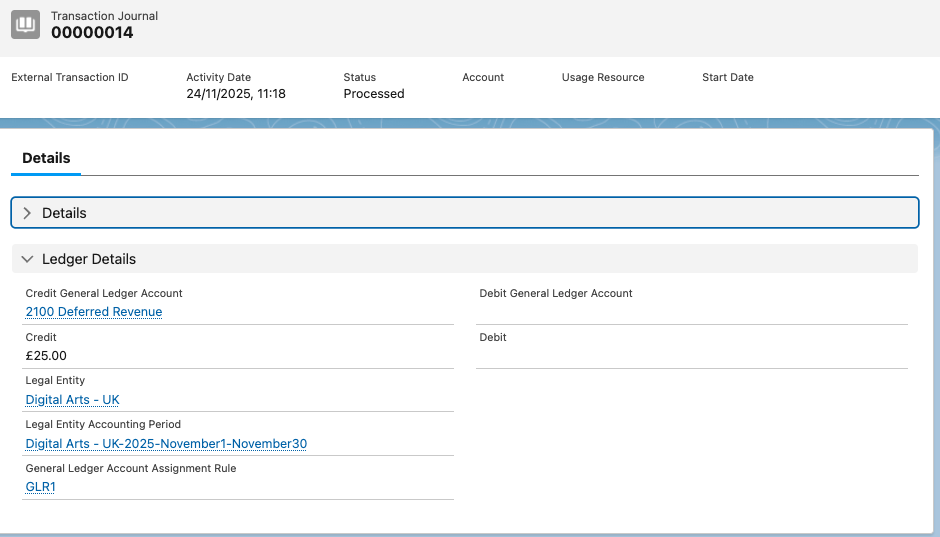
You can also see on these records the Accounting Period reference and our Legal Entity.
This concludes our walk through to the Invoice. We’ve covered the necessary setup to demonstrate how we can create Invoice details for our one time charge and monthly subscriptions product including an invoice document using a basic template. We can see from the Billing Schedule how we can then manage the production of further monthly invoices for our subscription product. And using General Ledger Account Assignment Rules we can see how we are creating Transaction records which reference the necessary Accounting ledgers from a debit and credit perspective giving us the necessary information to integrate the sales transaction with our Accounting system.
From this we can see how quote to cash is close to being delivered. Future posts will look at additional details around payment recording and reconciling invoices along with additional techniques for accounting processes covering credit and debit notes for cancellations and adjustments.