In this post we will build on our previous post Setting up revenue cloud – A walk through to Assets and Subscriptions by demonstrating how we can setup a multi-year subscription quote with separately priced segments across the lifetime of the product subscription.
This is referred to as a Ramp deal and is a common pricing tactic with multi-year subscriptions where you may want to offer the customer an attractive price for the first year but secure locked in price increments for following years to allow for general price increases or to achieve a required margin across the lifetime of the deal.
Ramp deals provide some interesting challenges from a quoting, ordering and product lifecycle perspective. We’ll look at each of these in turn.
Also Revenue Cloud has two mechanisms for supporting RAMP deals
- Ramp Deals for Lines where a specific product has a price Ramp schedule defined on the product record
- Ramp Deals for Groups where price ramps can be flexibly configured at point of quoting for any term defined subscription product using Quote Groups and nested Groups.
Line Ramps pre-date Group Ramps and the current Salesforce recommendation is to use Group Ramps if starting out with Ramp pricing. So this post will focus on the Group Ramp mechanism.
System setup
Firstly go to Setup – Revenue Setting – enable Ramp Deals for Groups in Quotes and Orders

Ramp Deals for Groups requires the enhanced Sales Transaction Line Editor, introduced in Winter 26 release, which super-cedes the original Transaction Line Editor component [see Setting up Revenue Cloud – A walk through to the Quote].
So we need to update our Quote Lightning Page with the Sales Transaction Line Editor component.
Go to a quote record – select Setup Menu – select Edit Page – from the lines tab within the quote page delete Transaction Line Editor component – add the Sales Transaction Line Editor component.
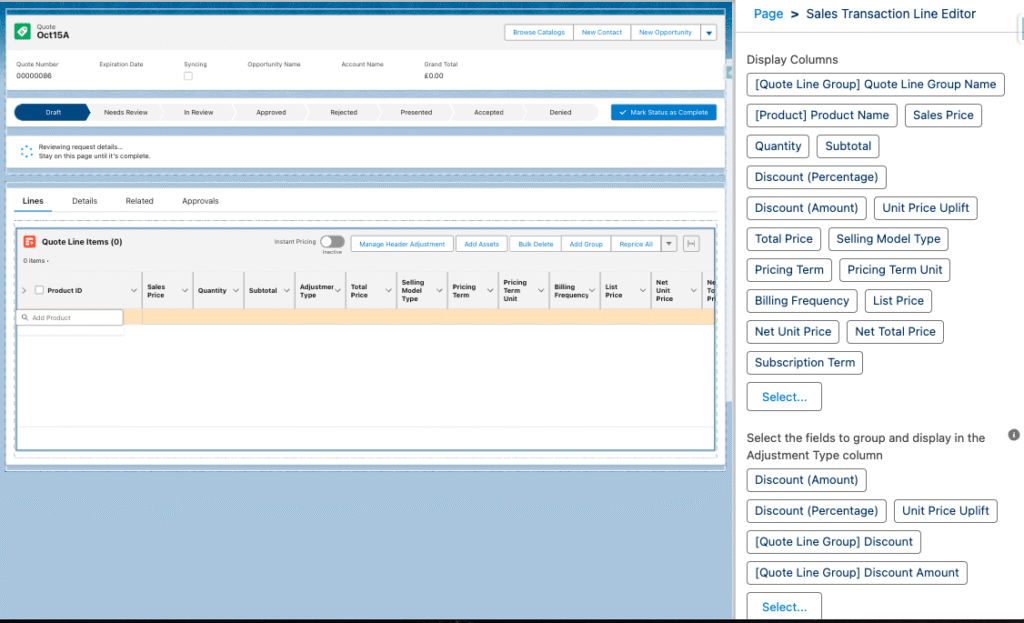
Select the component when added, and in the highlight panel to the right add the Display Columns for the fields required on the line item and include
- Discount (Percentage)
- Discount (Amount)
- Unit Price Uplift
- Total Adjustment Amount
From the highlight panel add the Adjustment types required.
- Discount (Percentage)
- Discount (Amount)
- Unit Price Uplift
This will allow us to apply a discount % or discount amount or an Uplift % [Uplift amount not currently supported] to a suitable quote line.
Quote Line configuration
If we now create a new Quote – Browse Catalog – Select Digital Art price book – select the following products from Digital Art catalog
- Digital Frame
- Art Gallery

We now select Add Group from the listed actions above the quote lines. This Creates New Group 1 and groups the selected product within it. Save the quote and click on New Group 1 and we see the side panel appear on the right where can define the group details such as
- Group Name
- Start Date [today’s date]
- End Date [today’s date next year minus 1 day]
- Is Ramped [Are we ramping prices in the segment – select Active]
- Segment Type [Custom or Yearly – select Yearly]
This creates an initial yearly segment where we can price our selected products.
We can then clone this segment using the drop down from the right hand side of the line
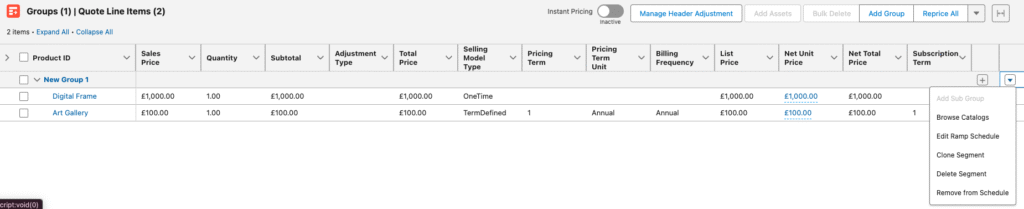
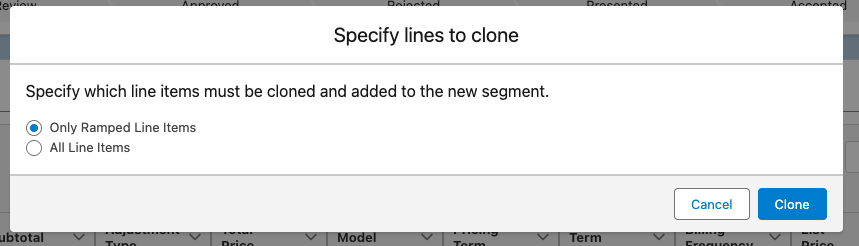
We are then prompted for which line items within the segment we want to clone – Term based selling model products are ramped line items.
A second group is then added to the quote containing our Art Gallery product and with start and end dates automatically configured for year 2.
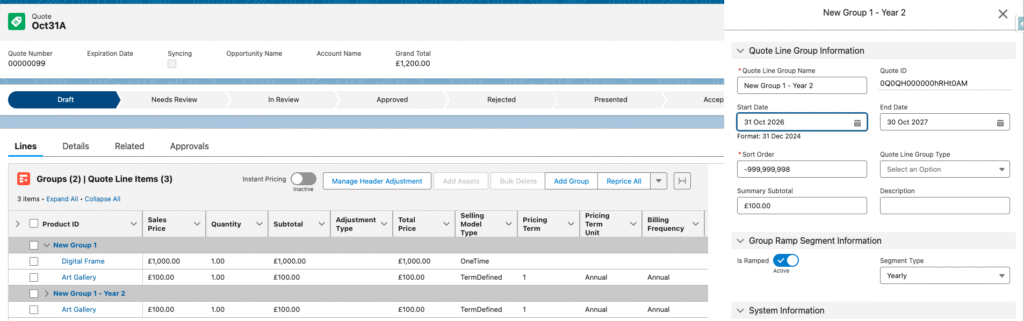
We can then clone this second segment to add a year 3.

By clicking edit within Adjustment Type field on each line item we can now add our price adjustments for each segment to provide the price ramping we require ie
- £10 discount on year 1
- 5% uplift on List Price for year 2
- 10% uplift on List Price for year 3

The above shows our updated quote within the Sales Transaction Line Editor display. If we look at the related Quote Line Items on our Quote we can see that each price adjustment yearly segment is setup as a separate dated Quote Line Item record.

If we now order our quote using Create Order action we create an Order record and associated Order Product records for each of our Quote Line Item records.
From the Order record we can see our Order Products within the Sales Transaction Line Editor
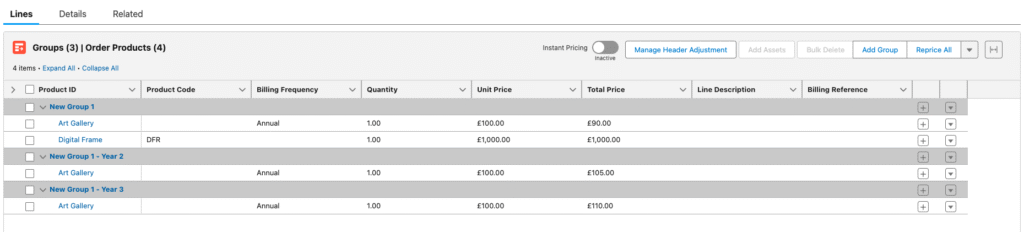
And if we look at the related list of Order Product records we can see each price adjustment yearly segment setup as a separate dated Order Product record.

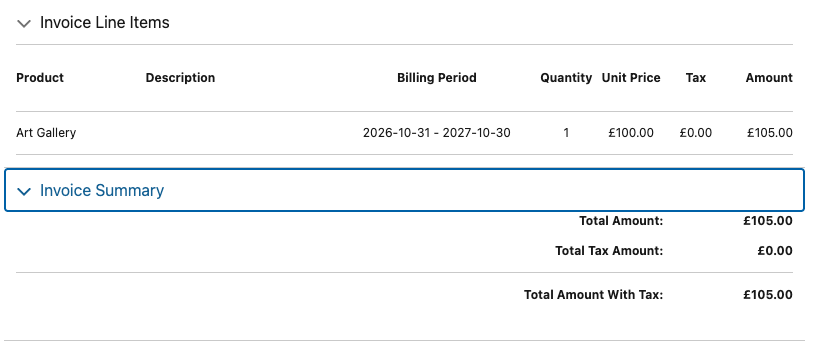
These Order Products can then be invoiced through Revenue Cloud Billing or passed through to an external billing system eg:
If we activate our Order we will then create the relevant Asset records as described in our earlier post.
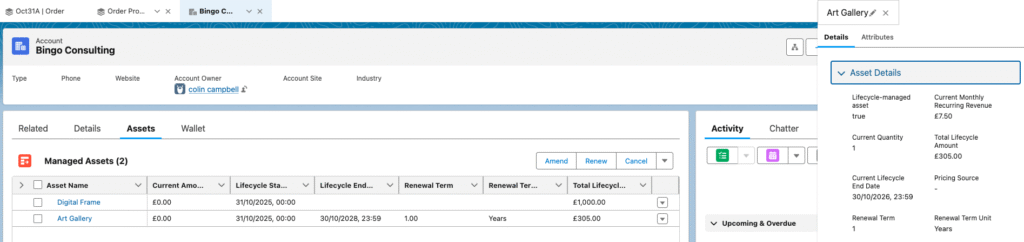
We can see that two Asset records are created, one for our Digital Frame one time charge product, and one for the Art Gallery subscription product. We can see our start and end dates for the three year lifecycle of our Art Gallery product and the Total Lifecycle Amount over that time in this view.
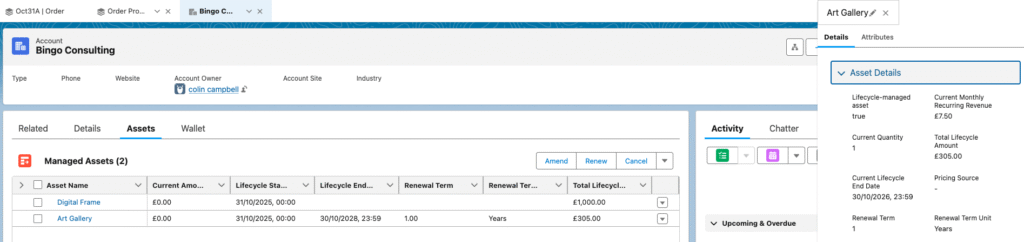
If we now look at our Asset record directly from the related list of Assets we can see on its related list the Asset Action record for the initial sale and the Asset State Period records which record the details for each of our dated ramped segments.
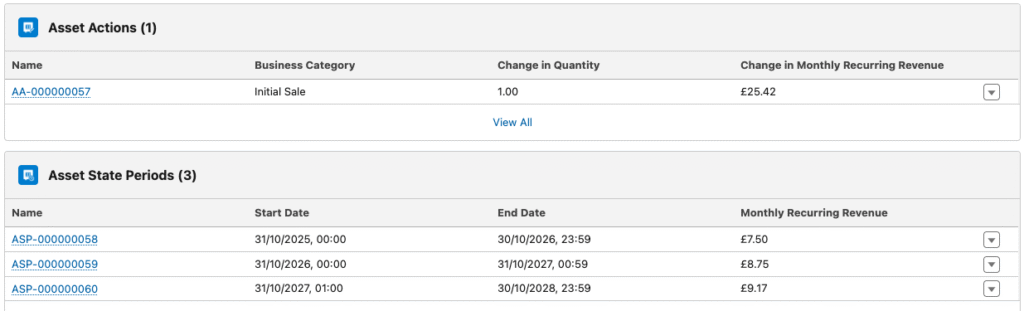
Each of our Asset State period records tracks the monthly recurring revenue associated with the segment. Using this data model we can maintain a single asset record for our multiple segmented Quote Line Items and Order Products. This is documented in the Asset ERD diagram shown below.
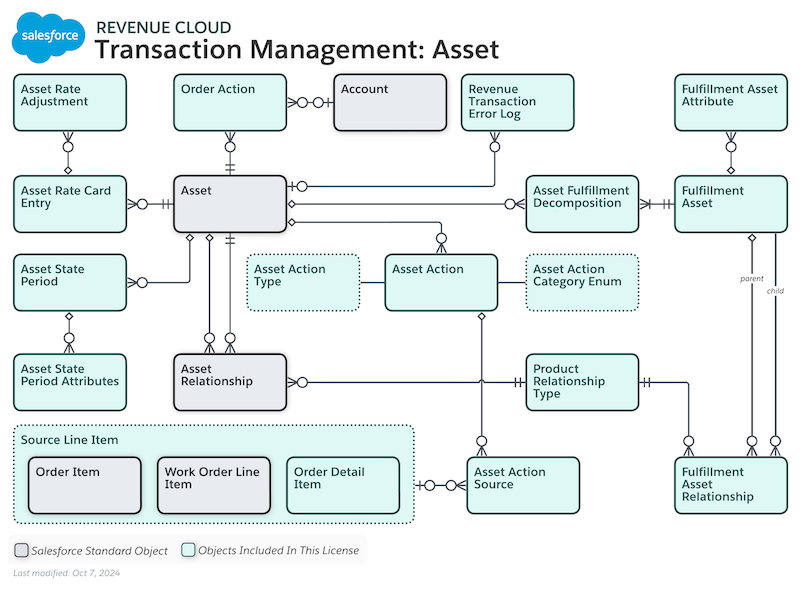
From this single Asset record we can then perform our Asset actions for amendment, renewal or cancel. For example with renewal we will create a renewal quote which carries over the final year 3 price adjustment of increasing price by 10%. This can then be further adjusted as required within the renewal quote.
Also note the reference in the ERD to Asset State Period Attributes against the Asset State Period. This gives us potential to adjust our product attributes within the lifecycle of our subscription product. This will be the subject of a later post.
Summary
This post provides a quick run through of how to manually setup Ramp deal quotes with multi-year priced segments and how these segments are then managed by the associated order and asset lifecycle management records.
Future posts will describe automating the creation of the Ramp segments and adjustments to the asset within the product lifecycle.