In this post we will build on our previous post Setting up revenue cloud – A walk through to the Quote by demonstrating how we can add a subscription product to our quote and generate an order followed by asset records which are used within Revenue Cloud to manage the product lifecycle from a revenue perspective. This is particularly useful with subscription products where we have recurring revenue events such as renewals and specific start and end dates associated with a service.
Areas we will cover include:
- Subscription Product Selling Models
- Subscription Products
- Subscription Start and End Dates
- Orders
- Assets
- Renewals
- Tracking Product Lifecycle Events
Subscription Product Selling Models
To demonstrate how Revenue Cloud can manage product subscriptions we have to add an additional Product Selling Model to the One Time model which was created earlier.
Select Product Selling Models from the Product Catalog Management Home Page and select New and setup Product Selling Name of Term Based – Yearly with Selling Model Type of Term-Defined and Pricing Term Unit of Years.
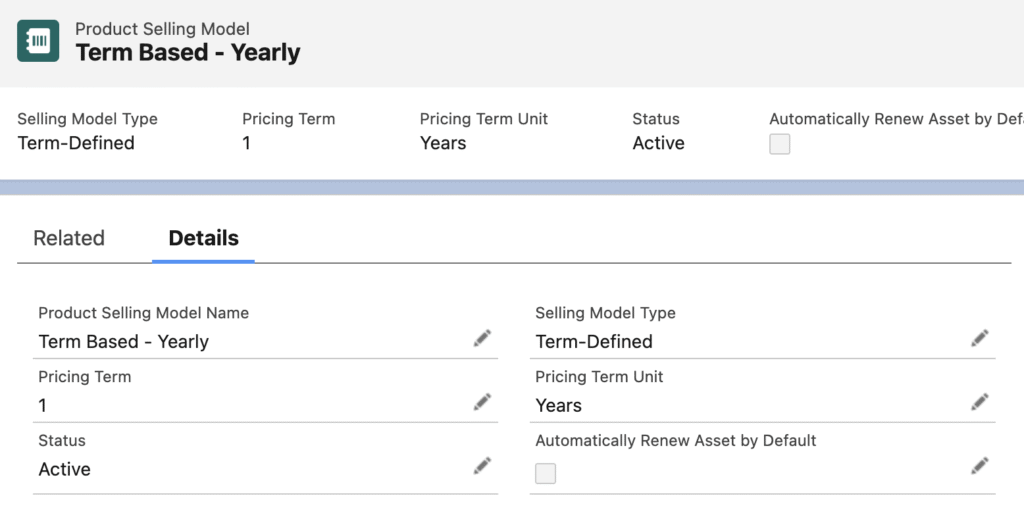
Revenue Cloud currently supports Term Units of:
- Months
- Quarterly
- Semi-Annual
- Years
The Term Unit selected determines the period of time for which the Product Price Book Entry corresponds. And as we shall when we setup our quotes with a product start date, a corresponding end date is calculated based on the selected Term Unit. So the above Selling Model is used to price a 1 year subscription product.
Subscription Products
We will now create our Product to reference the above Selling Model.
Select Products from the Product Catalog Management Home page and select New
Enter Product Name of Art Gallery, check the Active box and Save.
This product will provide access to a content library of digital art for use by our previous product Digital Frame. We want to sell the Digital Frame as a one time charge product as demonstrated earlier. And Art Gallery will be sold on a one year subscription basis.
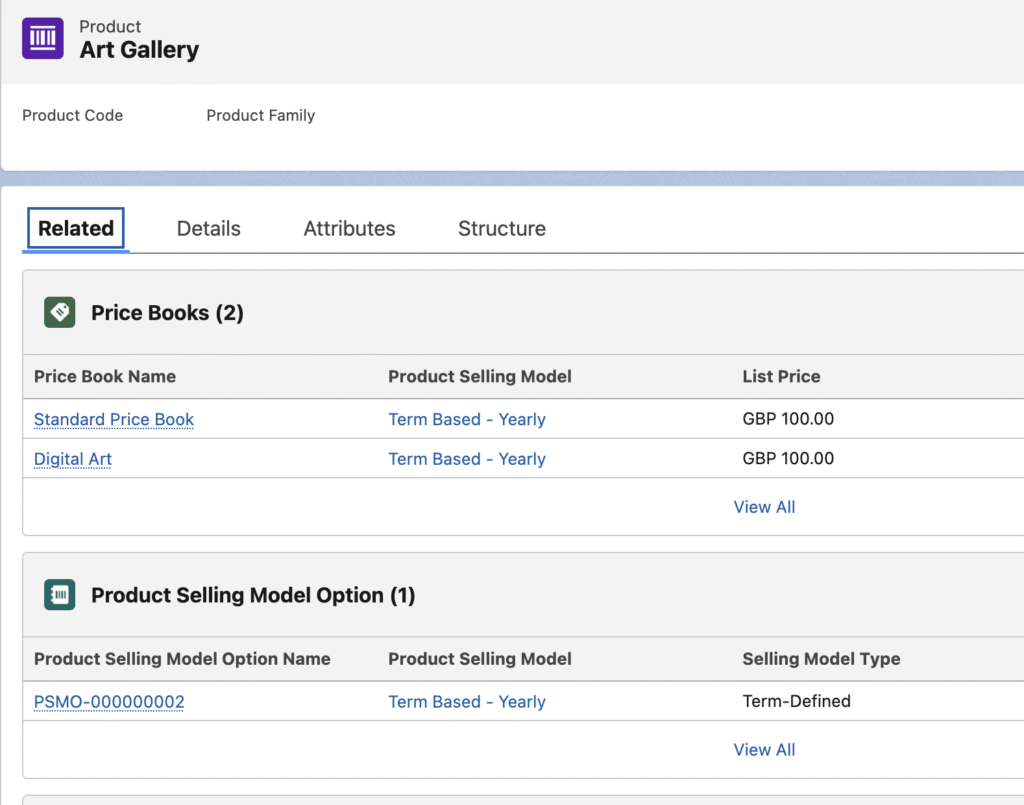
Click on Related tab and from Product Selling Model Option select new and select Term Based – Yearly.
From Related tab Price Books section select Add Standard Price, then Enter list price of 100, select product selling model of Term Based -Yearly.
Return to Product and Price book section again, select Add Standard Price button again but this time click on x next to Standard Price Book and enter Digital Art, the custom Price Book we created earlier, then enter List Price of 100 and Product Selling Model of Term Based – Yearly.
Return to Product and from Related tab Categories section select Assign button and select Content Category. This will make the product available for selection from our Digital Art Catalog.
We now have our subscription Product available for quoting with Price Book Entries, a Selling Model, and a Category defined.
System Maintenance Tasks
Having created our subscription product and associated details there are some system maintenance tasks which need to be performed.
Firstly we need refresh our Pricing Decision Tables.
Go to Setup – Salesforce pricing Setup – Sync Pricing Data – select Sync button
This refreshes the necessary pricing data tables used by our Pricing Procedure and the details behind this are described in the post, Salesforce Revenue Cloud Pricing Architecture
Secondly we need to refresh our Product Index tables.
From Product Catalog Management Home go to Index and Search Configuration then select Rebuild Index, Full Index Rebuild or Partial Index Rebuild.
Subscription Start and End Dates
We are now ready to create our Sales Quote with our subscription product.
From the Salesforce App Launcher select Quotes, and New Quote button.
Provide a Quote name and Save.
From the Transaction Line Editor select Line Items and then select Browse Catalogs action button from top right. [The first time this is done you will prompted to select Price Book – Select Digital Art Price Book].
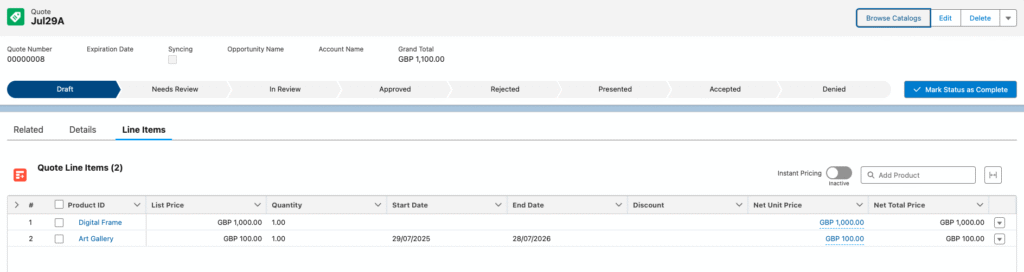
You will then see the two products we have defined, Digital Frame and Art Gallery. Add these both to the quote by clicking Add against each product and Save Quote.
We then return to our Quote Line items and see our Product added to the quote showing List Price, Quantity, Net Unit Price and Net Total Price. Additionally for Art gallery we have a Start Date and an End date showing.
The Start Date defaults to today’s date and the End Date is then calculated from Start Date plus the Pricing Term Unit ie 1 year. Options for adjusting these dates will be covered in a later post.
So our quote now totals to £1100 – The Digital Frame @ £1,000 and the Art Gallery subscription product @ £100 for the first year.
Orders
We will now move from our quote to setting up our quoted products as Assets on the system where our subscription product can then be managed. We do this via an Order record.
Firstly on the Quote Details tab select an Account for Quote from the list of available Accounts.
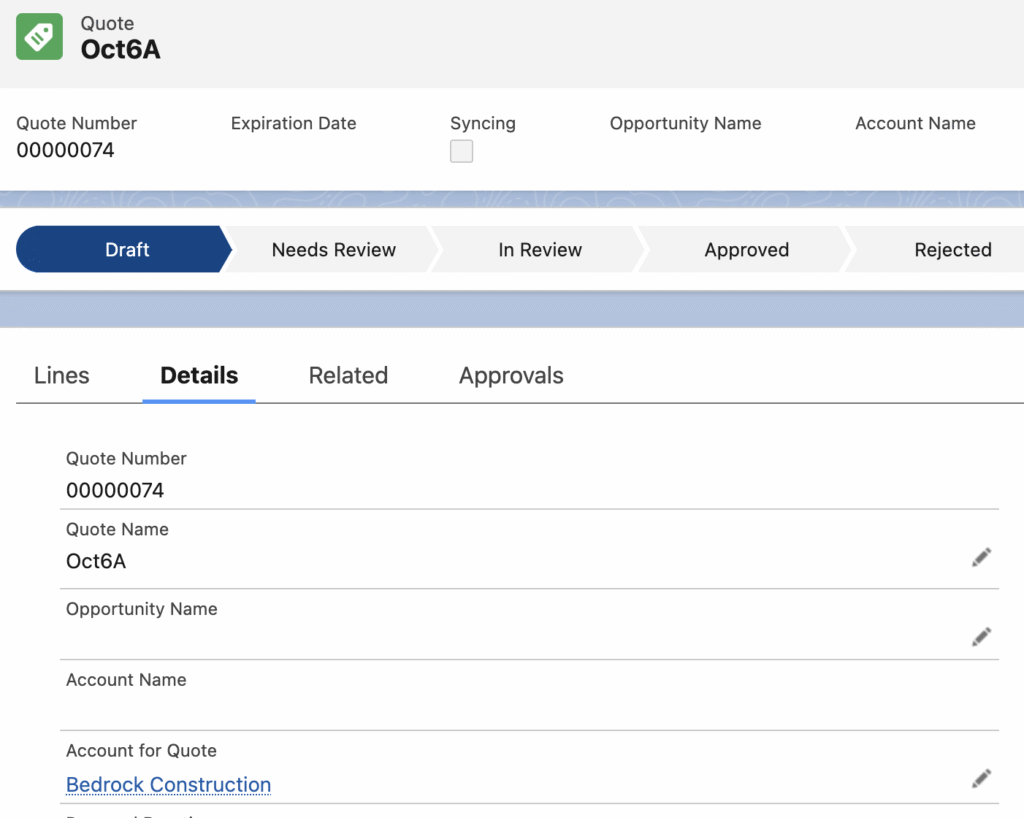
Then from the Quote Action bar in top right hand corner select the down arrow and from the resultant action pop-up select Create Order.
This will create an Order and Order Products records which mirror the Quote and Quote Line Items. A pop-up will appear on screen with a link to the Order record on creation

and also from Quote Related List Records we can see Order records created
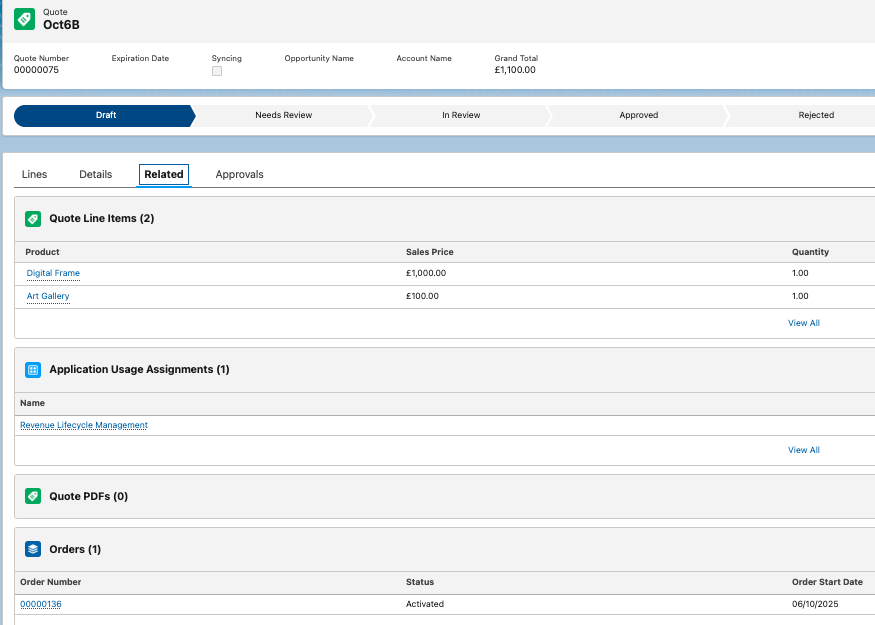
By clicking through to Order record we can see in Details tab
- Status is Draft
On Lines tab we can see Order Products setup as per our Quote Line Items with Start Date and End Date showing for our Art Gallery product.
We now need to Activate our Order to create the Asset record from which we can manage our subscription.
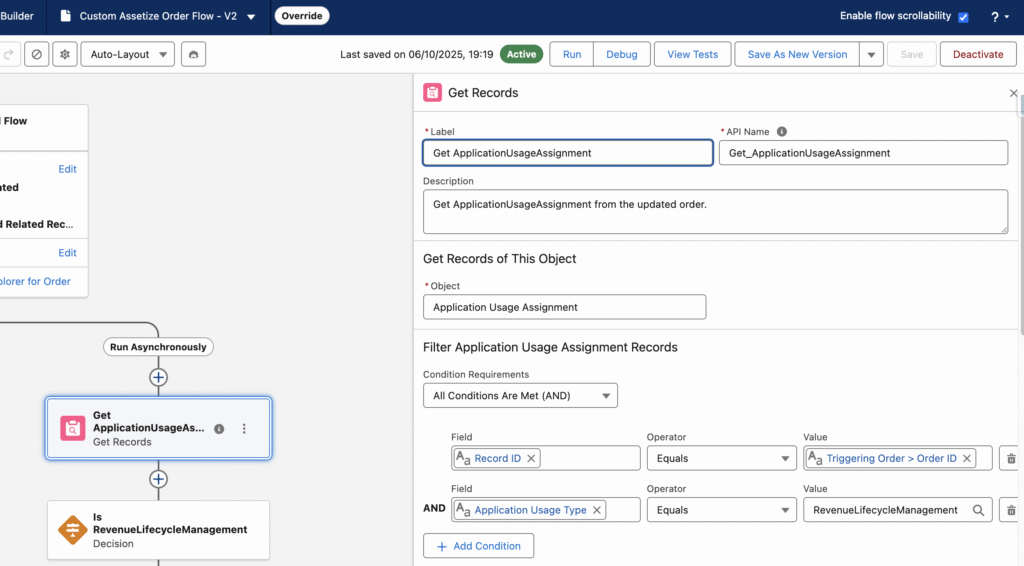
Before doing this we need to adjust a system flow which will create the Asset records for us.
Goto Setup – enter Flow in search box – Select Flow from List – Select and open the Flow labelled Assetize Order.
We are now seeing the draft template Flow which runs on Order activation to create Asset records from Order Products. We need create a new version of this which will be used at run time. At the time of writing the template has a couple of errors. We need to make the amendments as shown below
Change ‘SubscriptionManagement’ to ‘RevenueLifeCycleManagement’ within Get ApplicationUsageAssignment.
Change True to False within Record Is RevenueLifecycleManagement.
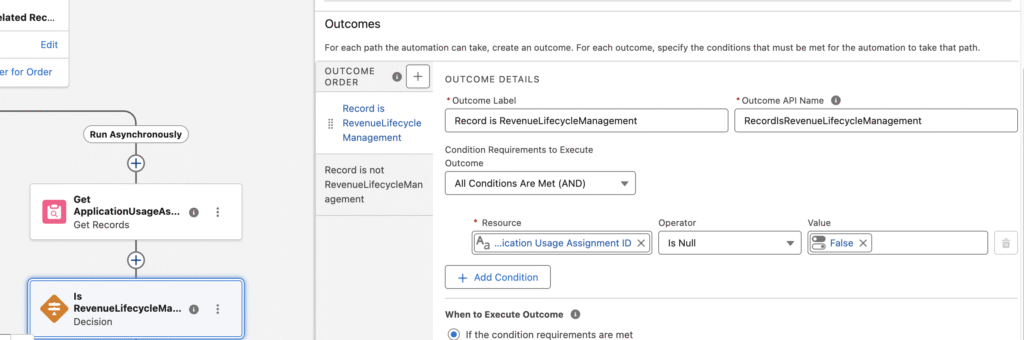
[the current template is based on a previous product called Subscription Management hence these required amendments].
Once we have updated the Assets Flow, Activate the Flow and go back to Order Details.
To Activate an Order we have to enter
- Shipping Address
- Billing Address
- Billing Contact [create a Contact against Account if required]
Select Activate from the Action bar on top right and we should see a popup message indicating Order has been activated.
Assets
From our Order Details page we can now click on the Account name and move to the Account record. From the Account record we can see under the Assets tab the Asset records created from our previous Quote and Order.
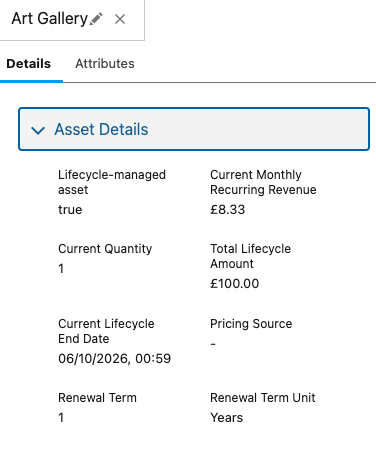
For the Digital Frame, a one time charge product, we can see Total Lifecycle Amount of £1,000 which is the value on the quote. For the Art Gallery, our 1 year term based product, we can see the Lifecycle Start Date and Lifecycle End Date one year on, and a Total Lifecycle Amount of £100 which is the value on the quote.

If we click on the Art Gallery Asset name a popup opens up on the right hand side which shows additional Asset Detail such as the Current Monthly Recurring Revenue as shown below.
Renewals
From the above Assets tab we can also see three actions
- Amend
- Renew
- Cancel
These actions will allow us to manage the lifecycle of the subscription asset. If we look at renewals as an example we see the following process:
Select the checkbox next to the Art Gallery asset product and then select the Renew action.
This launches the flow which is configured in Revenue Settings for managing assets.
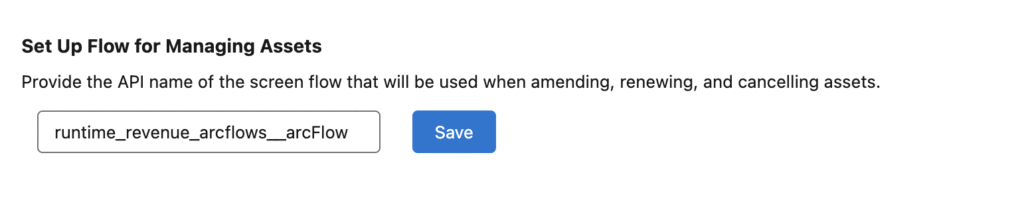
The default supplied Flow is labelled Amend, Renew, and Cancel Assets. It consists of branches of logic for performing these actions and which ultimately involves invoking the relevant Revenue Cloud API from the flow. [Revenue Cloud is built on a set of Rest APIs which can be accessed from Flow or other mechanisms – this will be explored in later posts].
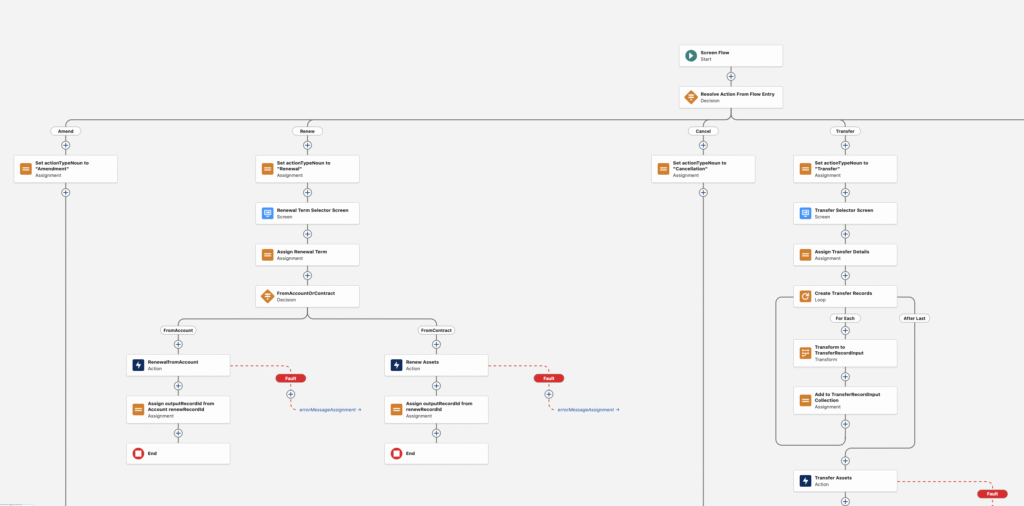
By building this logic in the Flow we have the potential to customise for specific Asset lifecycle requirements.
The standard flow and Renewal API which is invoked creates a renewal quote as shown below with start and end dates based on the end date of the current asset and the renewal period as given by the Product Selling Model Term.
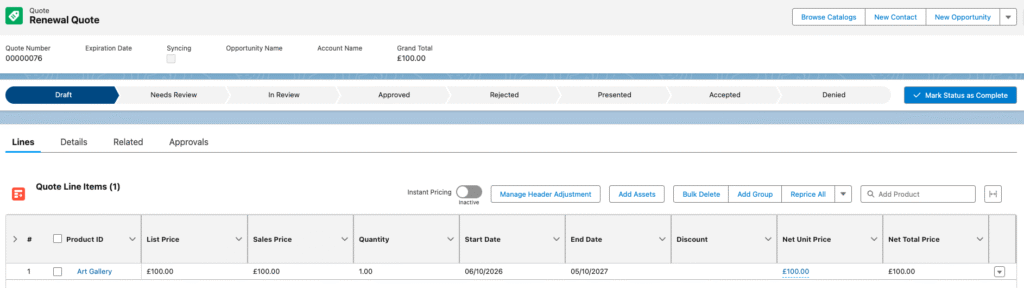
If we then process this quote by Ordering the Quote as described above the original Asset has its Lifecycle End Date extended by a further 12 months and the Total Lifecycle Amount is increased to £200 to reflect the extended period.

Tracking Product Lifecycle Events
The above process shows the basic architecture components and mechanisms in place for managing subscription asset lifecycles. We can take a deeper dive into the entities used to track these lifecycle events and the associated data metrics by looking at the Asset object model.
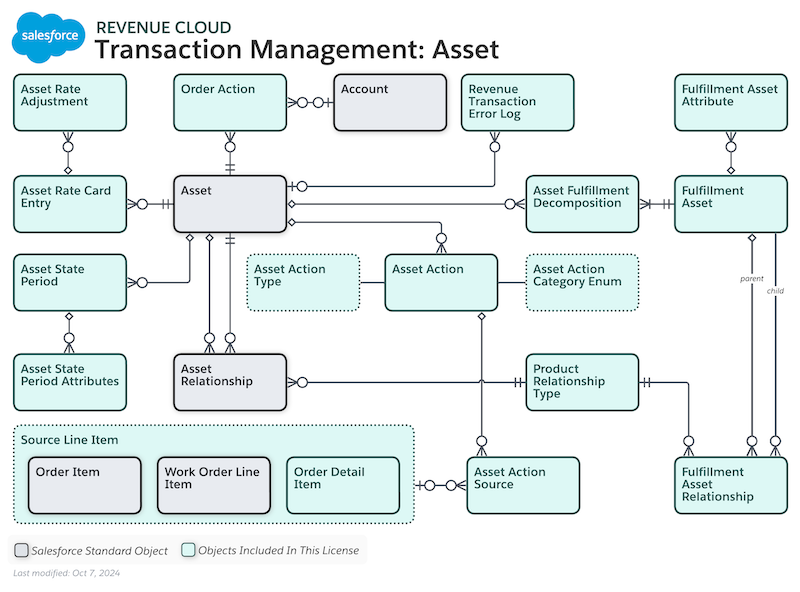
We can see from this that the model is non-trivial. One specific aspect is the use of the Asset Action object. This is a child object on the Asset which facilitates tracking the lifecycle of the Asset. If we open the Asset record from the Account related list for Assets for the Art Gallery asset we can then see on the Asset related list the Asset Action records created by our initial sale, followed by our renewal.

Data points on the Asset include the Business Category picklist which tracks the nature of the event affecting the Asset:
- Initial Sale
- Upsells
- Downsells
- CrossSells
- Cancellations
- Transfers
- Terms and Conditions Changes
- Renewals
- Other
If we dive deeper into the Asset Action record itself we can see the Asset Action Source record which contains a number of fields for tracking key metrics associated with the Asset such as:
- Reference Entity Item
- Price Book Entry
- List Price
- Net Unit Price
- Total Price
Summary
This post provides a quick run through of how to get up and running with Salesforce Revenue Cloud and subscription products showing the basic steps to go from product records to creating an asset record which can then be used to manage the lifecycle of a subscription product with events such as amendment, renewal and cancellation.
Future posts will go into more detail on these events and how they can be modelled within Revenue Cloud to provide a systematic way of tracking revenue history and forecast associated with subscription products.