Product attributes allow us to assign characteristics to a product which can be configured while building the sales quote. Attributes may influence pricing of the product. Attributes are also a mechanism for reducing the number of product records (skus) in the system and so simplifying management of the product records.
In this post we will start by adding a simple attribute, Frame Colour, to the Digital Frame product we configured in our earlier post, Setting up Revenue Cloud – A walk through to the quote.
We will then add an additional attribute, Screen Size, to an advanced Digital Frame product and show how can define relevant attributes associated to each separate product.
Also see this post, A Business Scenario for Revenue Cloud for an introduction into our example products.
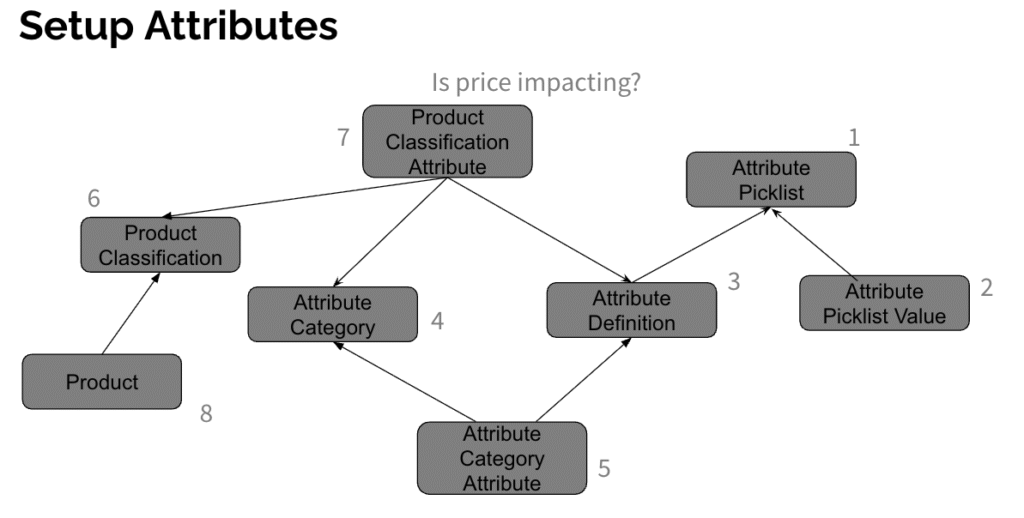
The figure below shows the required steps and the sequence necessary to setup an attribute on a product
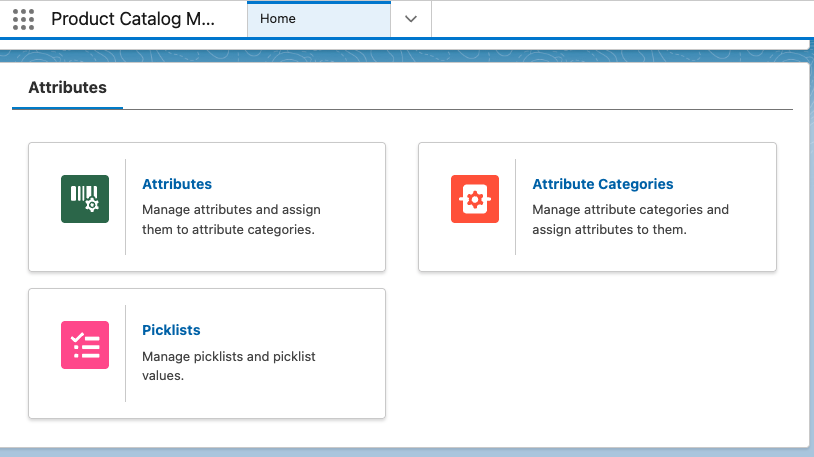
Our starting point is the Product Catalog Management app and the Attributes section
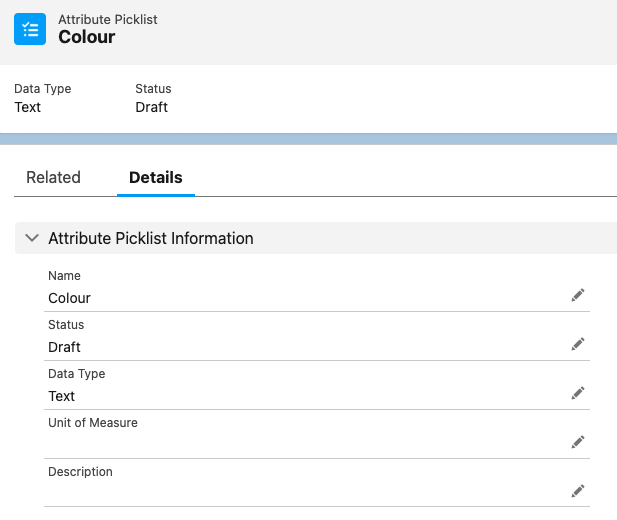
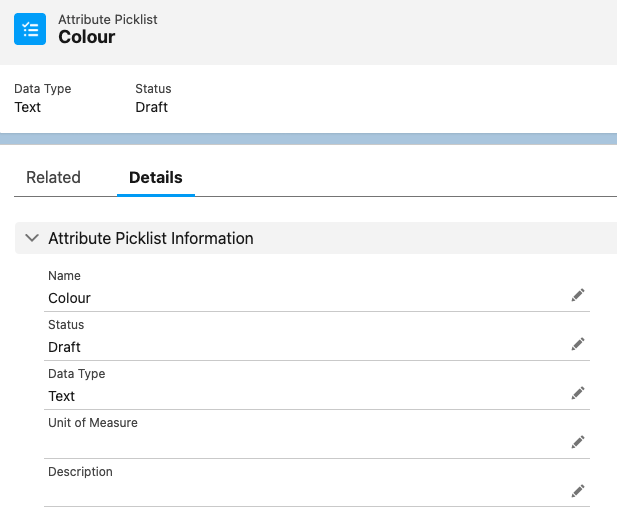
Attribute Picklist
We will start with defining a Picklist named Colour
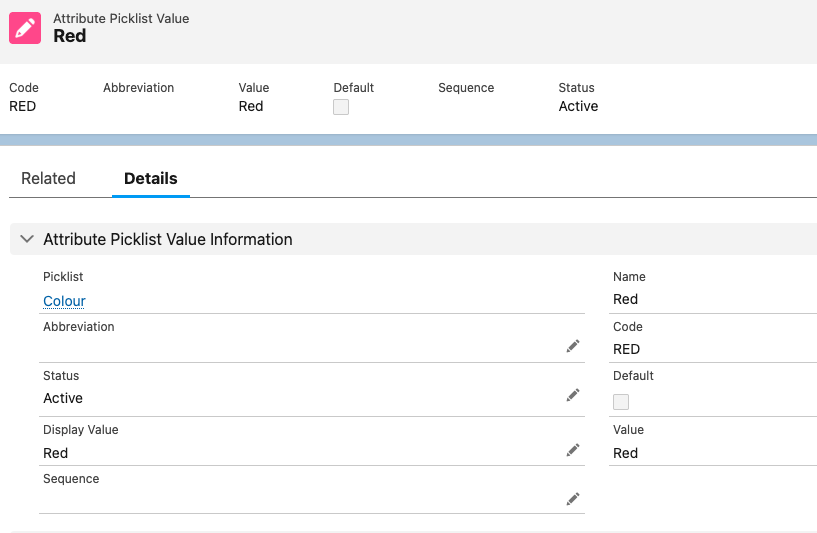
Create Attribute Picklist Values
We then create our attribute picklist values for Colour which are related list items to the attribute picklist.
Attribute Definition
Returning to the Product Catalog Management app we now select Attribute Definitions
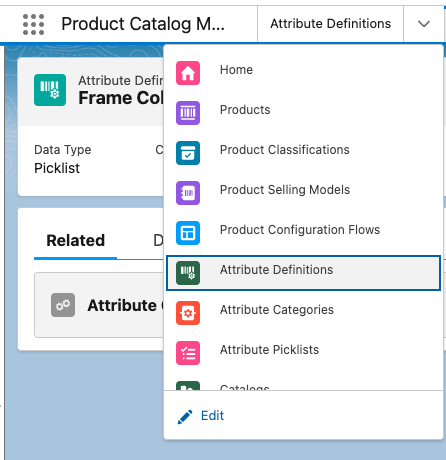
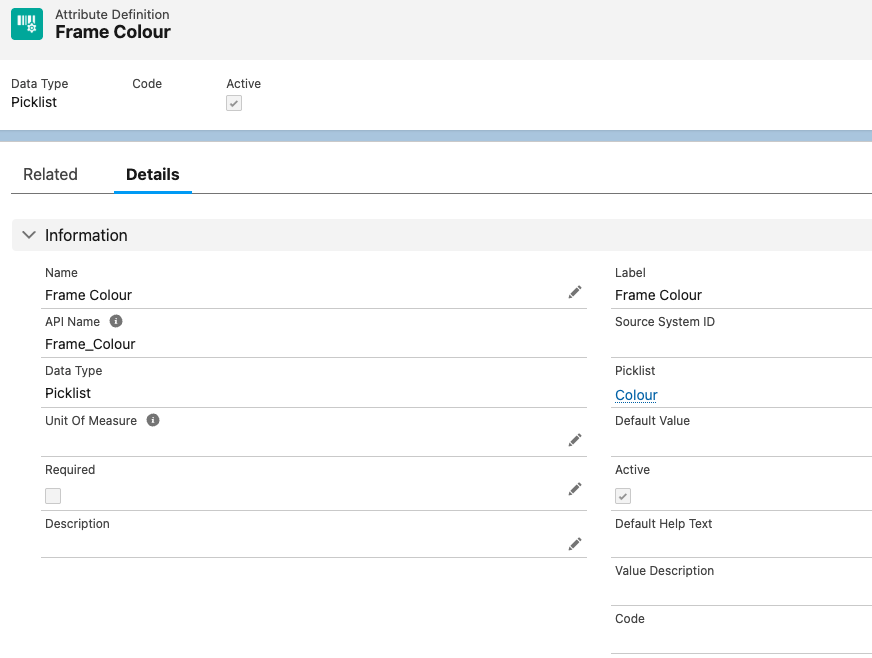
And we create our Attribute Definition, Frame Colour, and reference this to our Picklist, Colour
Attribute Category
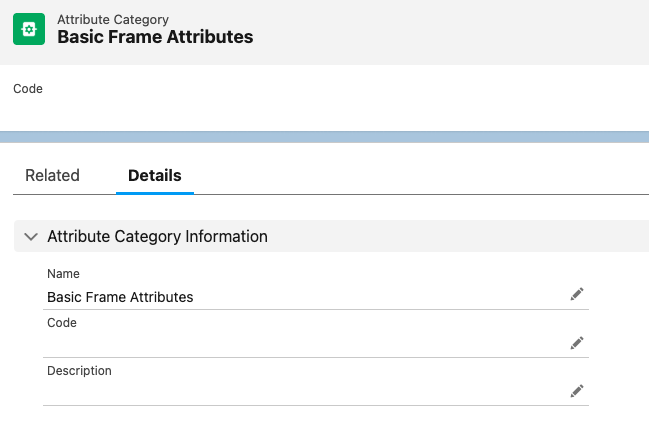
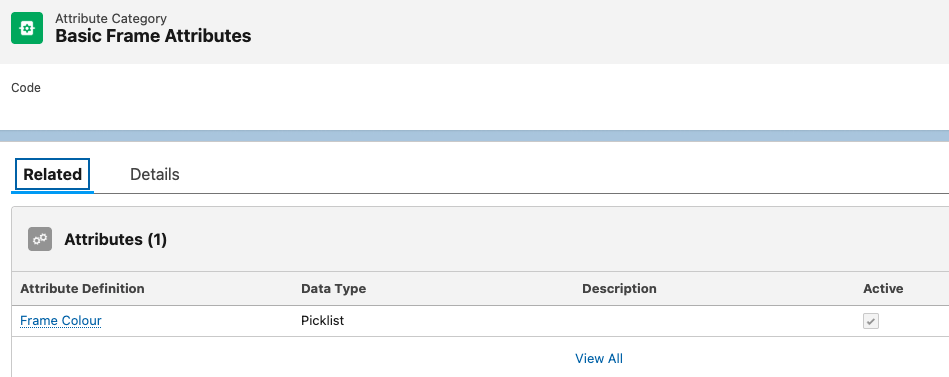
We now need to create an Attribute Category, Basic Frame Attributes.
Attribute Category Attribute
From this we will reference all the attributes we want to associate with our Digital Frame product. In this case there will only be the one attribute, Frame Colour, and we reference. this via the Attribute Category related list.
Product Classification
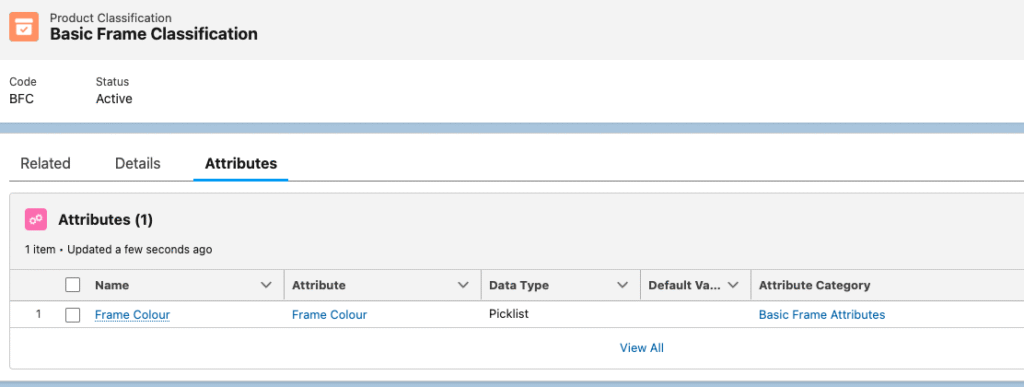
We then define a Product Classification, Basic Frame Classification
Product Classification Attribute
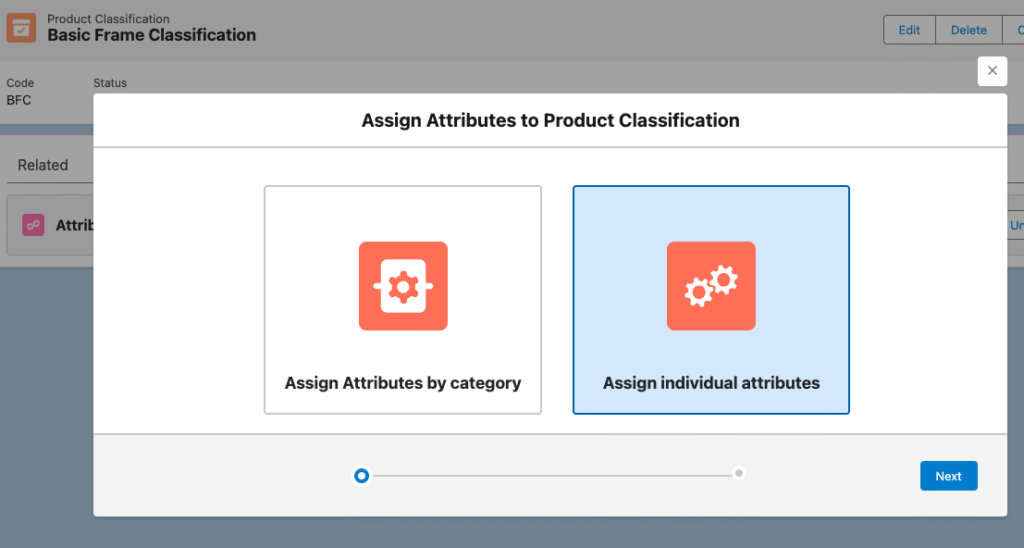
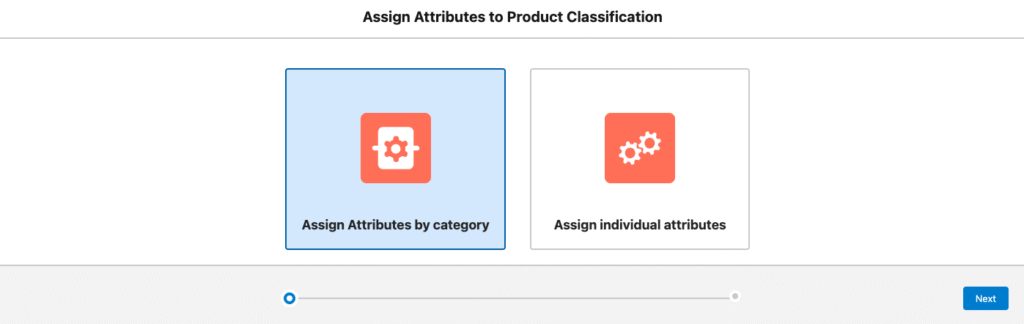
From Product Classification select Attributes and assign the Frame Colour attribute. In this case we are choosing to assign an individual attribute as there is only one, we could also assign by Attribute Category – We will show this later.
Frame Colour will then appear on the Attribute tab for Basic Frame Classification as shown above.
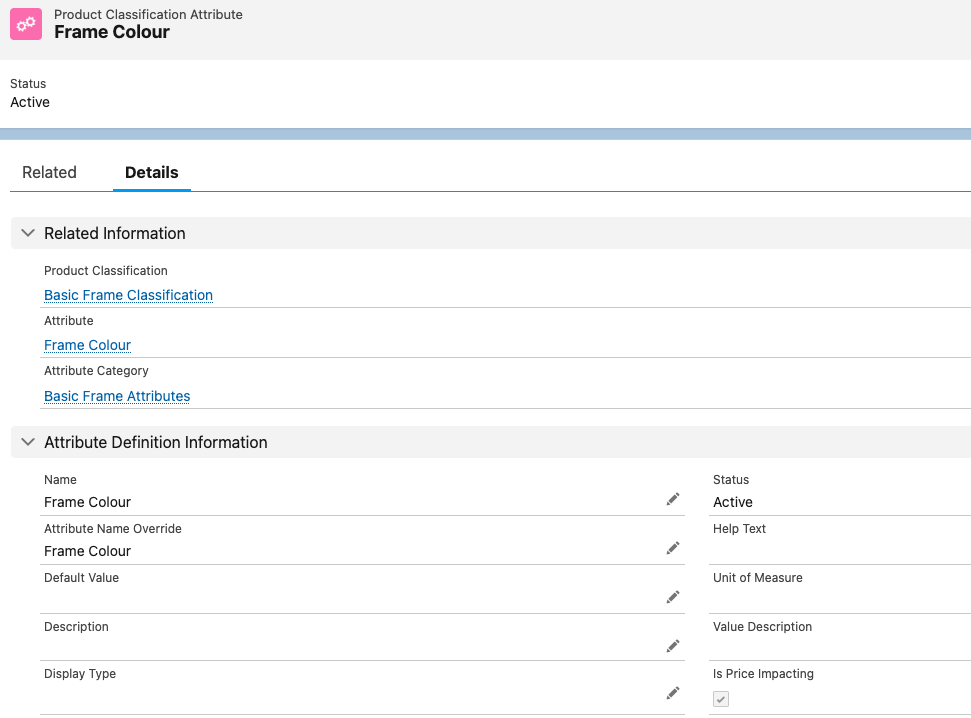
If we click on Frame Colour we want to select the check box – Is Price Impacting. This will allow us to adjust the price based on selection of the attribute value later on.
Product
If we now go to our Digital Frame product record, we can see the Based On field in the page layout [this should be added to the page layout if not already there].
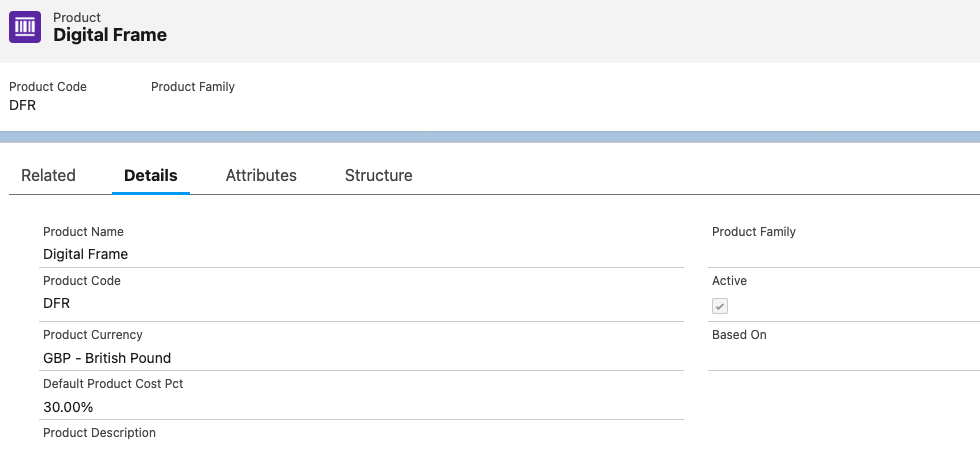
We select our Product Classification, Basic Frame Classification from the Based On field.
This then results in our Frame Colour attribute being added to the Digital Frame product.
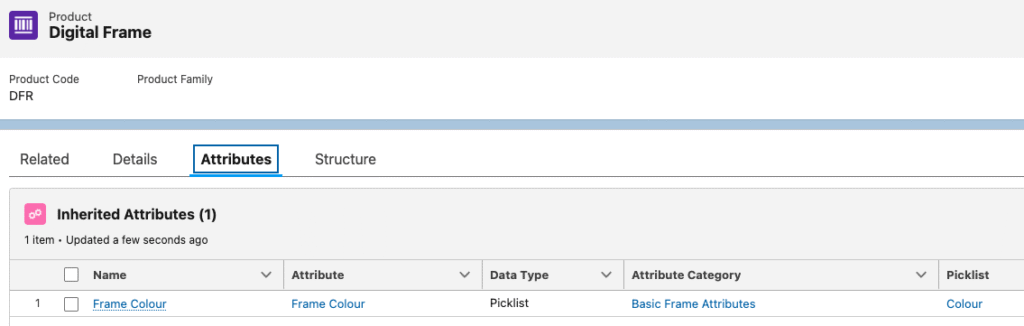
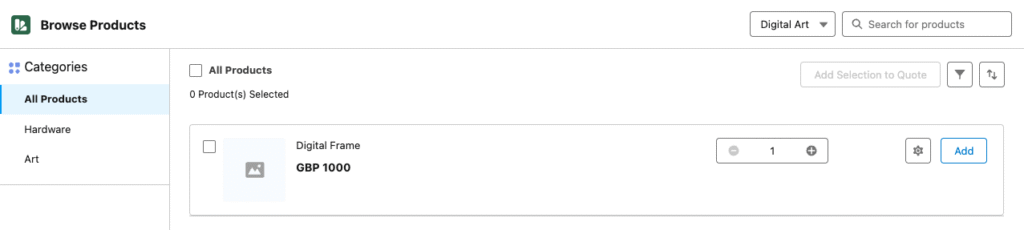
If we now search for the Digital Frame product on a Quote we can click on the configuration icon (cogged wheel) on the product line, or add to the quote and select Configure from right hand drop down.

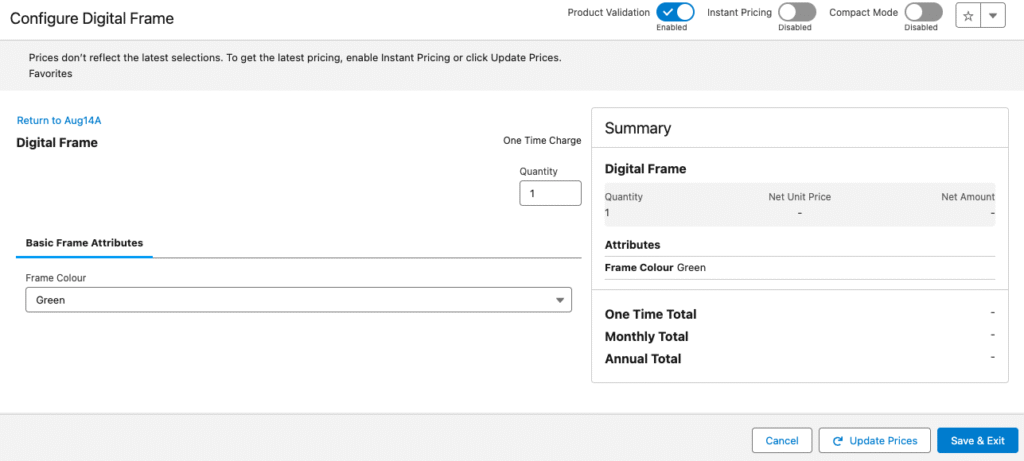
We then see the product configuration screen with our attribute Frame Colour available for selection.
If we now repeat the above exercise adding
- Picklist – Screen Size
- Picklist Values – 12Inch, 15Inch, 18Inch, 21Inch, 24Inch
- Attribute – Screen Size
- Attribute Category – Premium Frame Attributes – And assign Frame Colour and Screen size (ie we now have 2 attributes assigned)
- Product Classification – Premium Frame Classification – And assign category this time, Premium Frame Attributes.
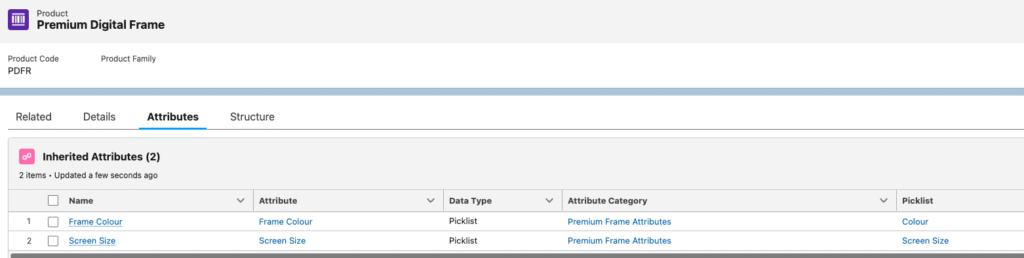
Now if we create a new Product record, Premium Digital Frame and select Based On, Premium Frame Classification we will see added to the product the two attributes we have created.
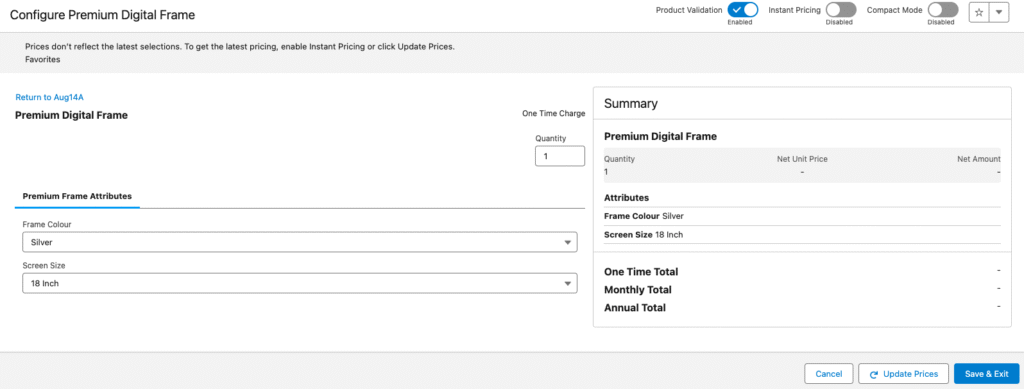
If we go to a quote and add Premium Digital Frame, we can then configure these two attributes within the product configure section.
In this post we have shown how we create attributes and assign to products, either individually, or through attribute categories.
Later posts will show how we can then adjust product price based on attribute selection and control attribute selection within product bundles using configuration constraint rules.
Using attributes in this way will ultimately help us reduce the number of Product records we have to define and manage.