This post is the third of a series of posts which takes a detailed look at the Revenue Cloud Pricing Procedure and attempts to explain how the pricing elements are used with the Pricing Procedure, the data points which are referenced, and the outputs which are produced. In this post we’ll take a look at how we can introduce tiered volume discount pricing to a quote line product.
In our previous post, Unpacking the Revenue Cloud Pricing Procedure – Part 2 – Volume Discounts, we added to our pricing procedure the Volume Discount element and setup on our Product record a related Price Adjustment Tier record which applies a 10% discount value when the quote line item has a quantity of 5 or greater. This discount is applied to all the units on that quote line. This is termed a Range adjustment method. We now want to change this to apply a discount for specific quantity ranges, each range offering a different level of discount. This is termed a Slab adjustment method. Our example will use the following values.
- Quantity Range 5 to 9 a discount of 10% will be applied
- Quantity Range 10 to 14 a discount of 15% will be applied
- Quantity Range 15 or higher a discount of 20% will be applied
To do this we add the Tiered Volume Discount element to our pricing procedure. As described in Salesforce Revenue Cloud Pricing Architecture , this provides a price based on quantity discounting through referencing lower and upper bound quantity bands and associated discount values to adjust or over-ride the current product price. Similar to Volume Discount except a separate discount is applied to each quantity banding.
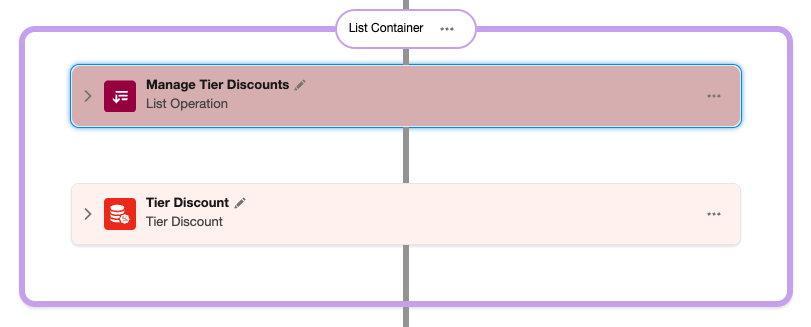
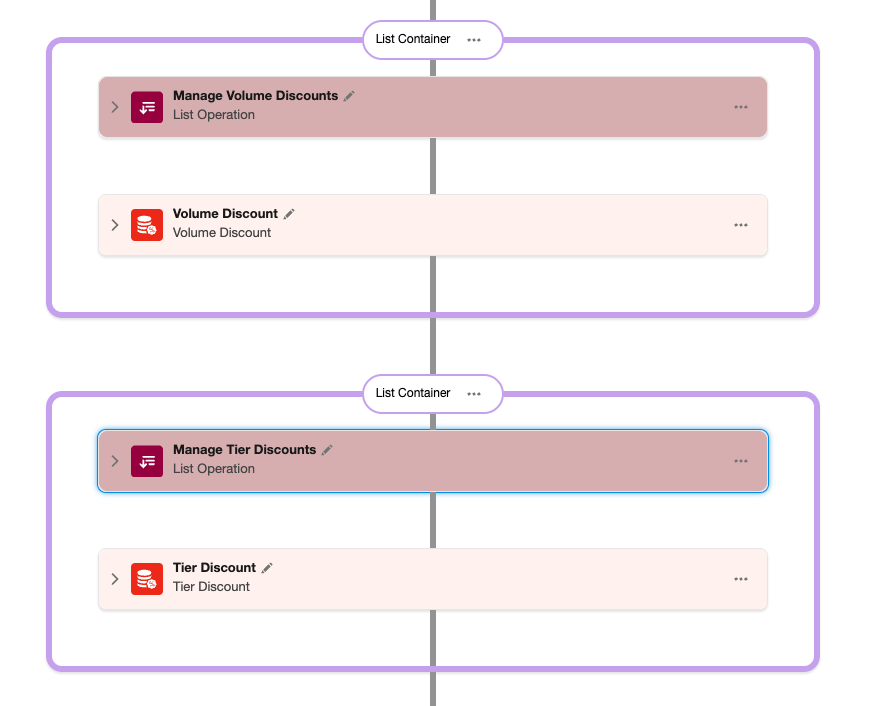
So if we open our earlier Pricing Procedure, Pricing Procedure Unpacked, and following the Volume Discount pricing element, we add the pricing elements shown below, List Group containing a List Operation, followed by the Tier Discount element.
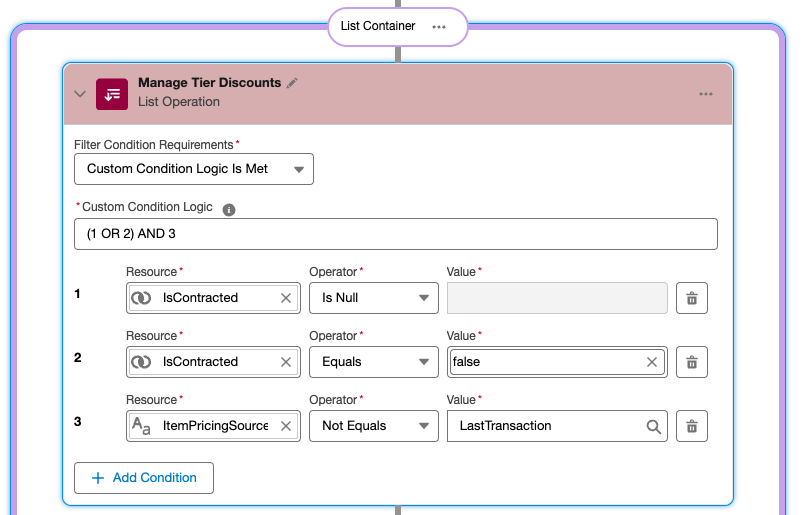
Configure the List Operation as shown below. The Context tags referenced as resources are standard tags which filter quote line pricing not based on contract pricing or previous transactions. We’ll look in more detail at this in a later post.
We now configure the Tier Discount pricing element as shown.
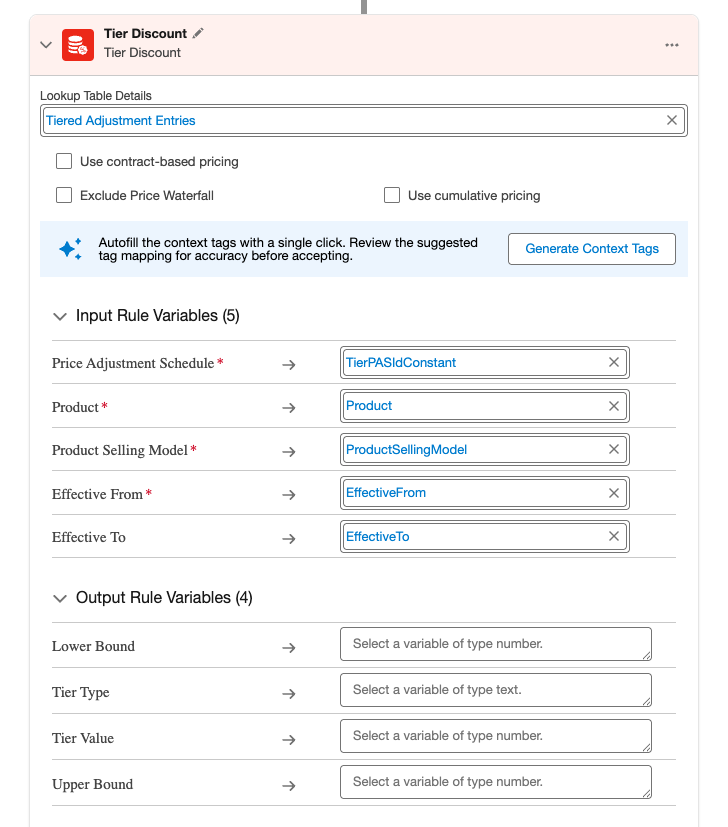
This references a standard Lookup Table, Tiered Adjustment Entries which we will use to populate our volume discount bands and discount pricing on a product by product basis.
The Lookup Table references Input rule variables which use standard Context tags as shown. Based on the inputs and the Lookup Table values a Tier Type and Tier Value is returned with Lower and Upper Bounds defined.
Tier Type is one of the following
- AdjustmentPercentage
- AdjustmentAmount
- OverrideAmount
Tier Value is a number representing the above Type.
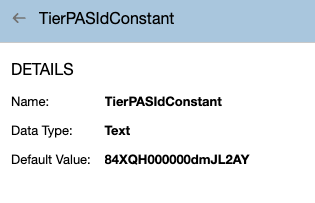
Note the reference to the TierPASIdConstant. This is a local Constant resource defined within the pricing procedure which references the ID of the Tier Priced Adjustment Schedule. We’ll reference this record later when we setup our product price tiers.
The element then uses a further set of inputs shown below with these values and other standard Context tags to calculate adjusted NetUnitPrice and Subtotal.
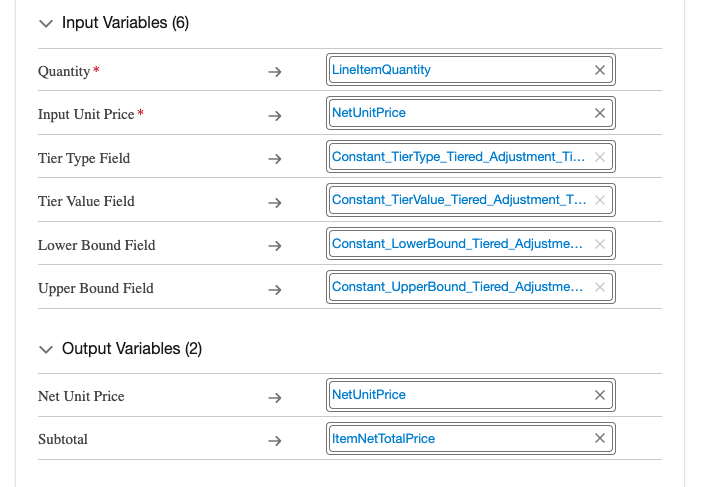
Note the additional Constants are defined in our standard pricing procedure template.
We can now save and activate our pricing procedure.
We then need to add our product specific tiered discount bands and discount details.
If we go to the related list for the Digital Frame product we created in our earlier post, Setting up Revenue Cloud – a walk through to the Quote, and view the related list we see the Price Adjustment Tier record we added for our previous volume discount. We can remove this by setting the Effective To date field on this record to an earlier date.
We now select New to create our new Price Adjustment Tier Records.
As previously, we first select a Price Adjustment Schedule record. The record we need to select for our tier discount is Standard Tier Based Adjustment which is configured with an adjustment method of Slab.
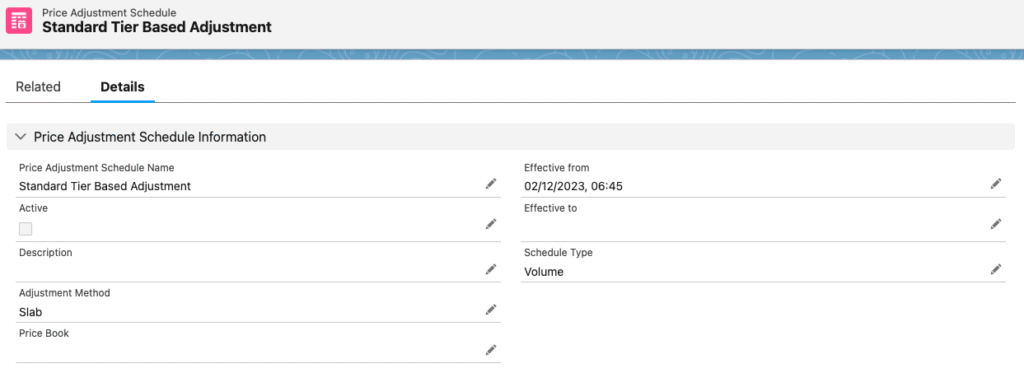
We then choose our discount Tier Type
- Percentage
- Amount
- Override
the Tier Value representing the above type, the lower bound of the tier quantity, the upper bound of the tier quantity, and the Product Selling Model.
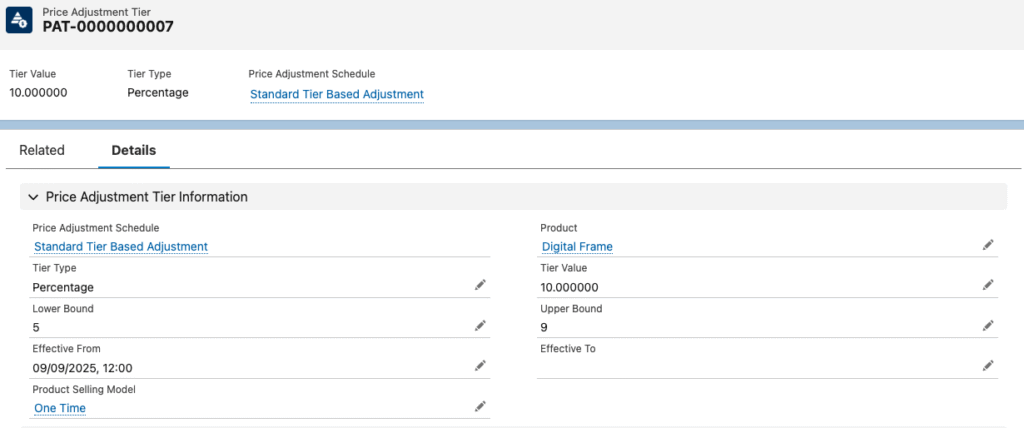
We now have a Price Adjustment Tier record on our Digital Frame product which will apply a 10% discount for quantities between 5 an 9.
We repeat this by creating additional Price Adjustment Tier records for quantities between 10 and 14 with discount of 15% and quantity of 15 or more with discount of 20%.

We now need to refresh both the Lookup Tables, Volume Discount Entries and Tiered Adjustment Entries.
Both these Lookup tables reference the same Salesforce object, Price Adjustment Tier ie they both use the same data. However the two pricing procedure elements process the data differently as described above and in the earlier post.
If we now go back to the quote line for our Digital Frame product we can adjust the quantity value to five and we see the following discount applied
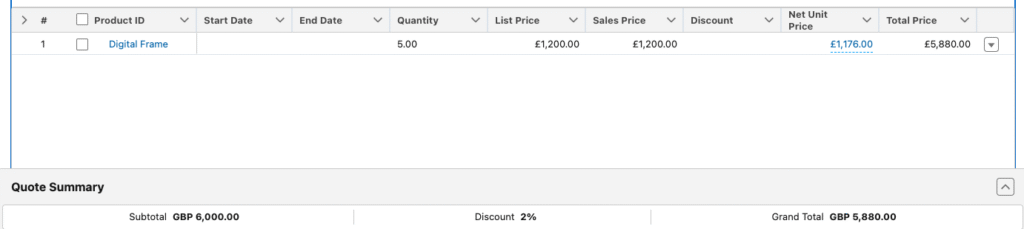
So we have a discount of 10% applied to the 5th unit only from the quantity which results in a total discount of 2% for the quote.
If we now change the quantity value to 15 we will see the following discount applied based on the separate tiered discounts defined above.

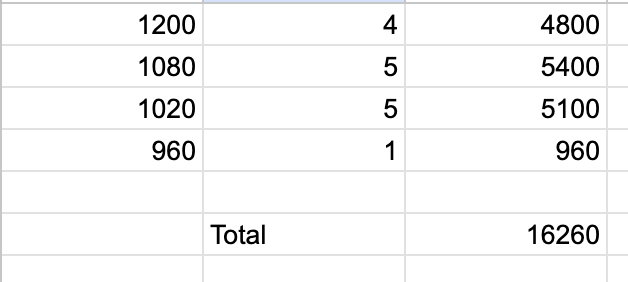
We can check this with a simple spreadsheet where can calculate the discounts applied to each separate tier and the resulting total.
We now have our pricing procedure managing both Range and Slab volume discount methods.
This is a good example of the flexibility of the pricing procedure and pricing elements architecture.